
If your Fileinvite Login URL ends in fileinvite.com, please use this knowledge base instead.
What's Changed for Borrowers
Updated Layout
The portal features a cleaner, modern layout designed to make navigating large document checklists clearer and less overwhelming for borrowers.
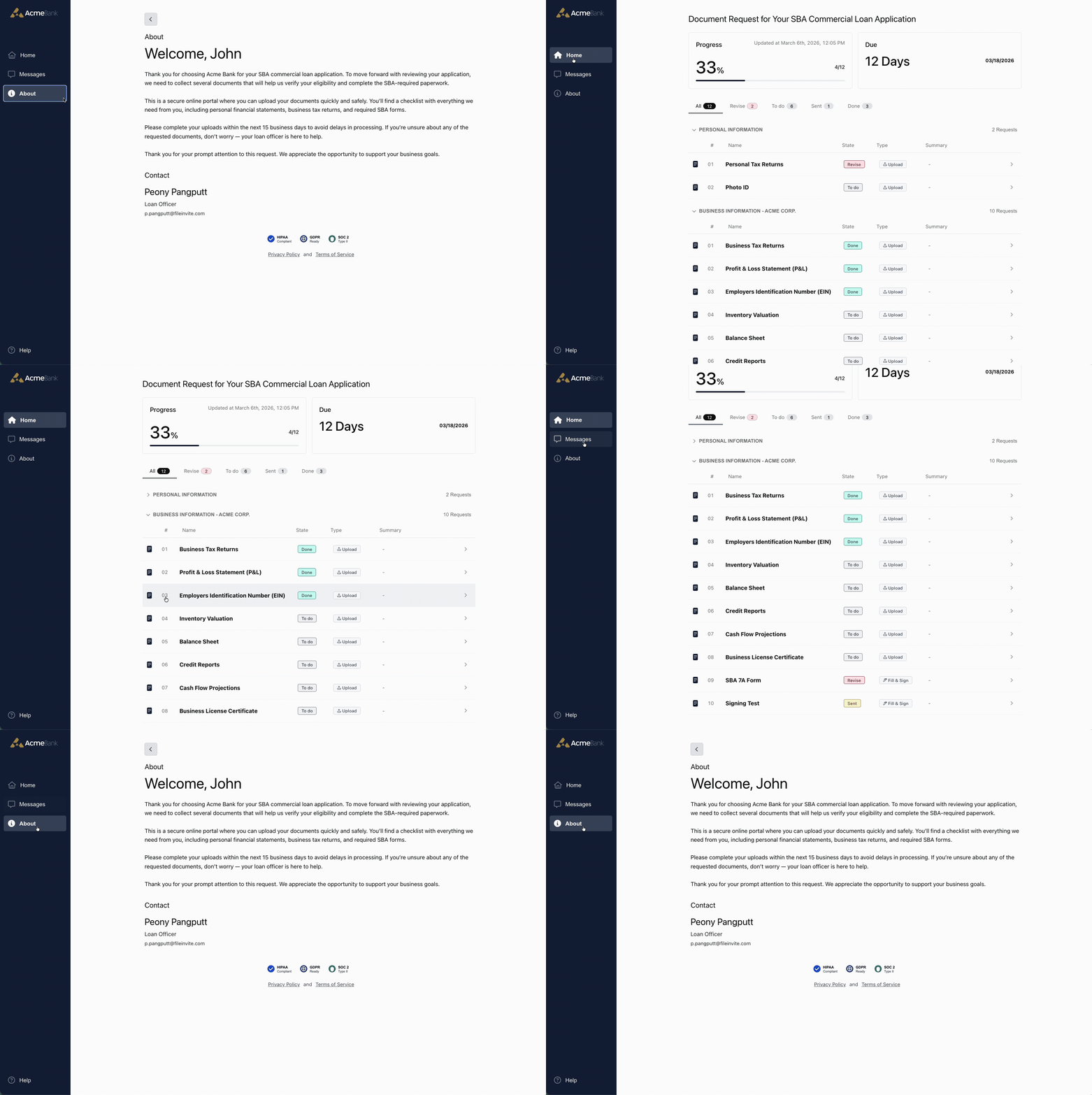
Dedicated Request Pages
Each document request now opens on its own page rather than expanding in-place. This gives borrowers more space and clarity to focus on what's needed for each individual request.
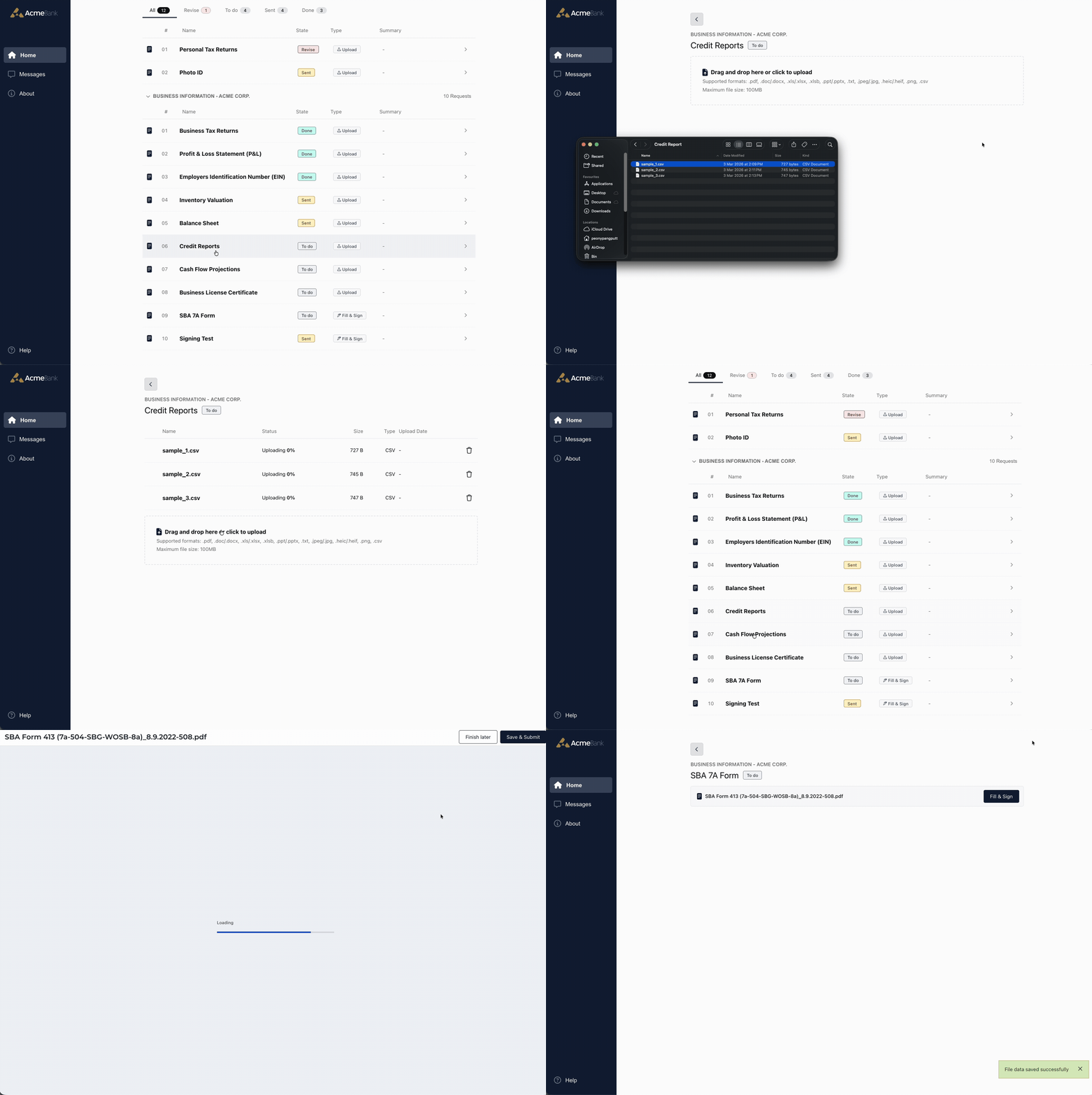
To open a request:
- From the Client Portal, locate the relevant request you wish to complete
- Click on the request itself or click on the arrow right next to it's summary to open it on its own dedicated page
- Complete the request (upload files, fill out forms, etc.)
- Navigate back to the main portal view to continue with remaining requests
Request Status
Borrowers can see at a glance what's left to do, what's been submitted, and what's been accepted or needs revision.
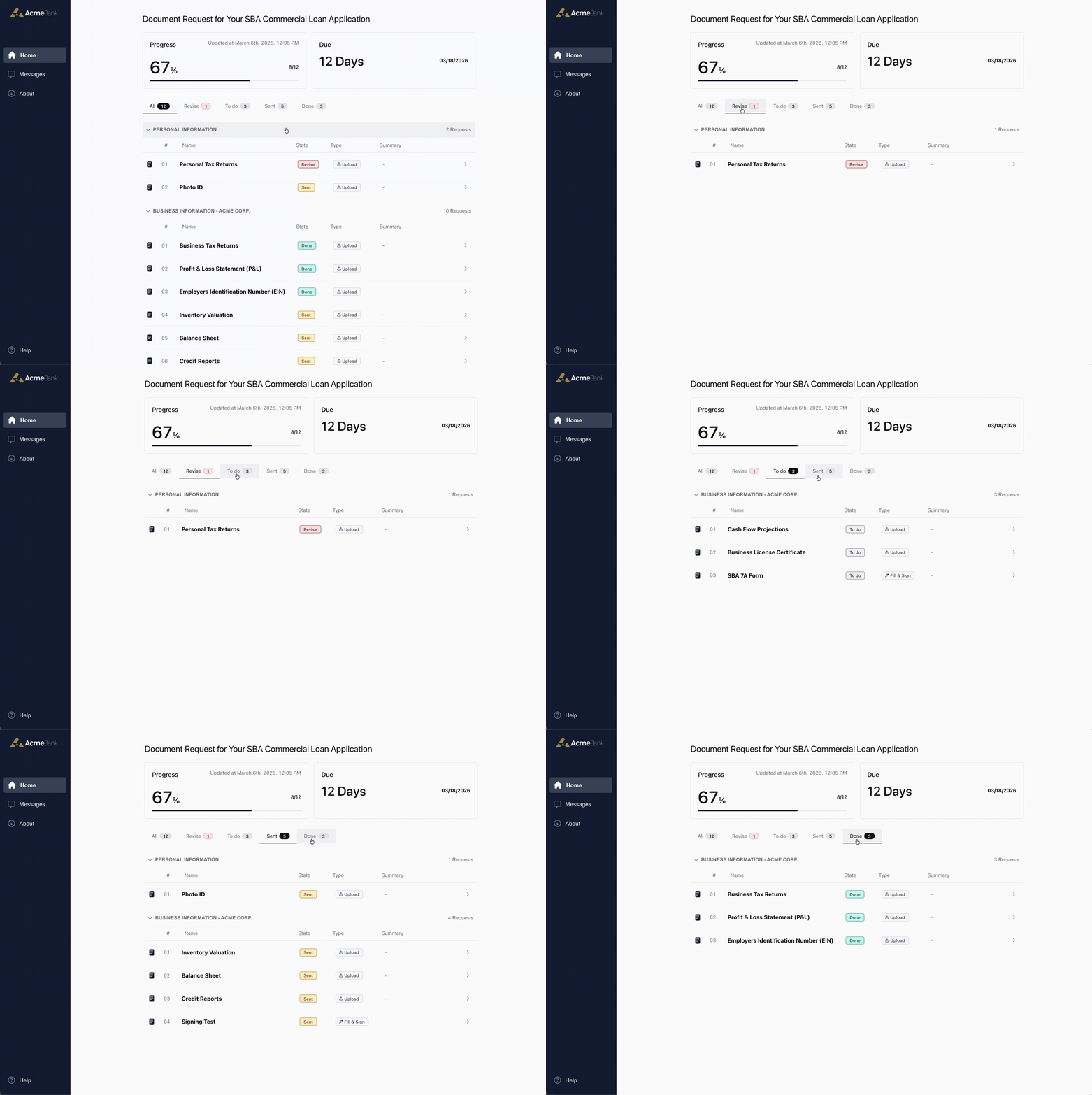
To check request status:
- From the Client Portal main view, review the progress bar and metrics at the top of the page showing To Do, Sent, Done, and Revise counts

- Scroll through the Request to see the status of each individual request
- Look for status indicators on each request:
 – The request has not yet been actioned
 – The borrower has uploaded a document and it is awaiting review
 – The user has accepted the submitted document from the borrower
 – The user has requested changes; the borrower should review and resubmit
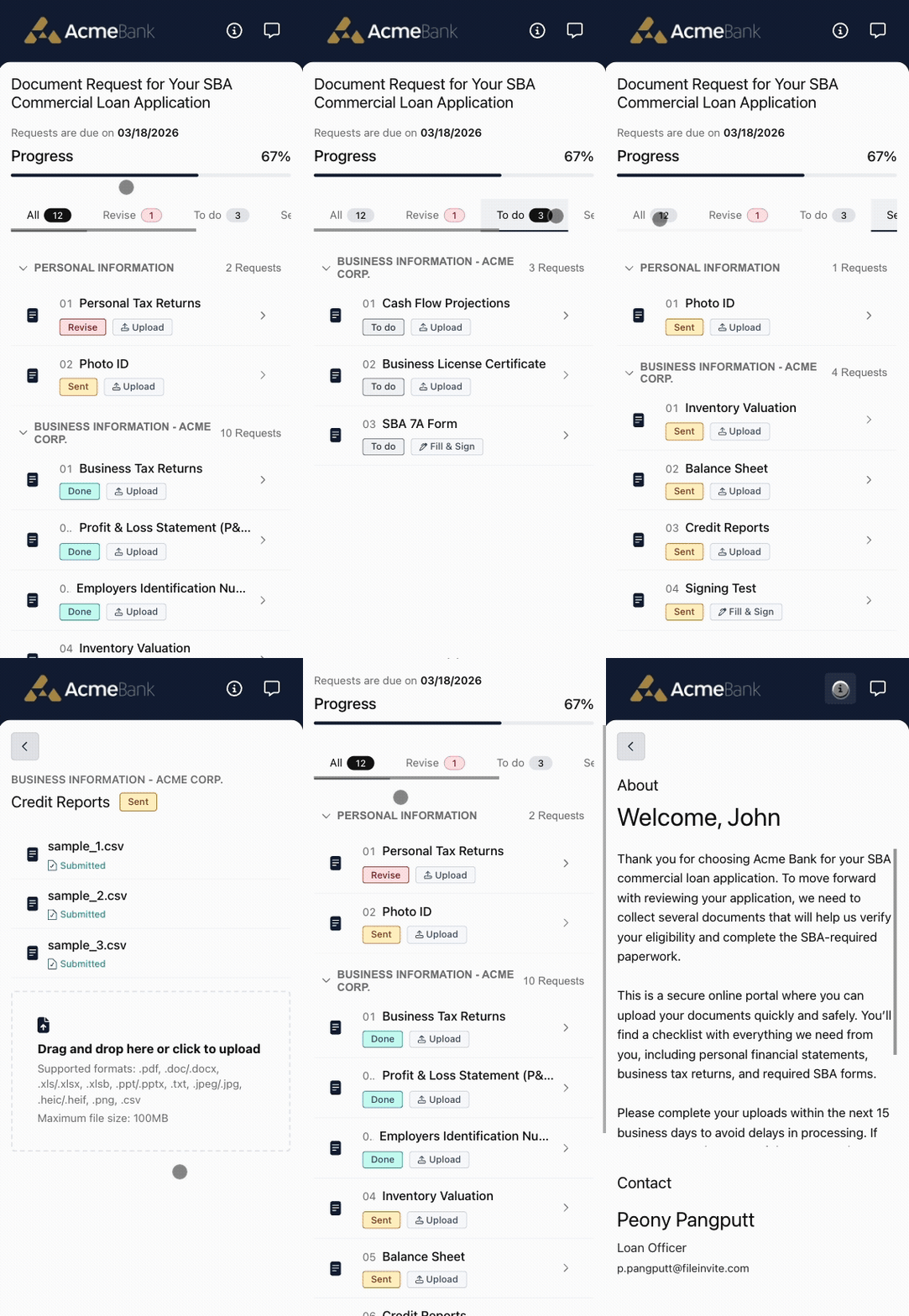
Mobile-Optimized Experience
The portal is fully optimized for smaller screens. Borrowers can upload documents and track progress from their phone without compromise.
To upload documents from a mobile device:
- Open the portal link from the Invite email or SMS notification on your mobile device
- The Client Portal will load in a mobile-optimized view.
- Navigate to which request you wish to complete.
- Tap the upload area to select files:
- Take Photo – Use your device camera to capture a document directly
- Photo Library – Select an existing image from your device
- Browse Files – Choose a document from your device storage
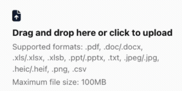
- The file uploads and submits automatically — no additional submit button is required
Updated Branding Placement
Your institution's branding now has more intentional placement within the portal layout, giving borrowers a more consistent, on-brand experience when they open their portal.
What's Not Changing
Your existing workflow as a user is unchanged. Templates, requests, reminders, and settings all carry over — your borrowers will simply see them presented in the new design.
No action is required from you or your borrowers. The updated portal applies automatically.
Receiving the Invite
Immediately after a sender creates and sends an Invite, each contact receives an email. The email subject line is the name of the Invite, with the sender listed as the from address. The email contains a personalised message and a link that opens the borrower's Client Portal.
Welcome Page
The first time a borrower clicks Get Started in their Invite email and opens their Client Portal, they may see a welcome page before their requests. The welcome page displays:
- The sender's name, role, and email
- The personalised message from the Invite
- A Continue button that opens the borrower's request list
How the welcome page works:
- The welcome page only appears if the sender added a message in the Message to client field when creating the Invite. If no message was added, the borrower goes straight to their requests.
- If the portal requires a One-Time PIN (OTP), the borrower completes verification first, then sees the welcome page.
- After the borrower clicks Continue, the welcome page doesn't appear again on later visits from the same browser and device.
Note: The welcome page is remembered in the borrower's browser, not in their account. If a borrower opens the portal on a different device or browser, or clears their browser data, they'll see the welcome page again. This is expected behaviour.
Form Collaboration
When multiple contacts are on the same Invite and working on a shared form:
- Each contact can see what others have completed
- Completed fields and signatures are visible to all authorised contacts
- Changes appear in real time without a page refresh
- Each person can work on different sections simultaneously
Multi-Language Support
The portal is now available in five languages. Borrowers can switch language at any time using the language picker in the top-right corner of the portal.
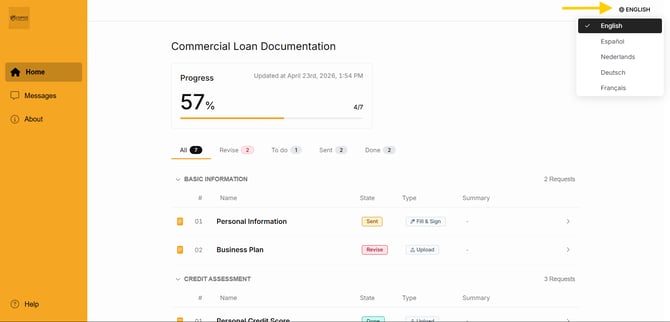
Supported languages: English, Spanish (Español), Dutch (Nederlands), German (Deutsch), and French (Français).
The portal selects a language automatically based on the borrower's browser language if it matches one of the supported languages. For full details, see Multi-Language Support in the Client Portal.
SMS Notifications
Borrowers receive SMS notifications in addition to email for the following:
- Reminders for pending document requests
- Notifications when items are due today
- Ongoing reminders (when enabled by the sender)
- When the Send Portal Link is triggered, borrowers receive both email and SMS notifications
Portal V3 Availability
Portal v3 is now generally available for all accounts. No action is required — the updated portal applies automatically. Backwards compatibility issues with account logos and email formatting have been resolved in this release.
Note: Portal v3 is required for certain features, including the Illion BankStatements integration. If you need Portal v3 enabled ahead of the scheduled rollout, contact your FileInvite account manager.
Sender Experience
As the sender, you can review Invite progress at any time from the Invites Management Page. This page shows the status of all active Invites, which requests have been submitted or accepted, and any items flagged for revision.
🎉 A better experience for your borrowers means a smoother process for your team! 🎉