
If your Fileinvite Login URL ends in fileinvite.com, please use this knowledge base instead.
Send Options
When creating an Invite, you can choose between two send options:
| Option | Behavior |
|---|---|
| Send Now | Invite is sent immediately (default behavior) |
| Send Later | Invite is scheduled for a future date you specify |
Scheduling an Individual Invite
- Create a new Invite or open a draft Invite
- Complete your Invite configuration (template, contacts, messages)
- Click the Date field on the Invite creation form
- In the panel that opens, select Send Later from the left-hand menu
- Click Pick Date next to Send Date to choose the future date when the Invite will be sent
- Set the Due Date using one of two methods:
- After X days – Enter the number of days after the send date (e.g., "After 10 days")
- On a specific date – Click Pick date to choose an exact calendar date
- Click Apply to confirm your schedule
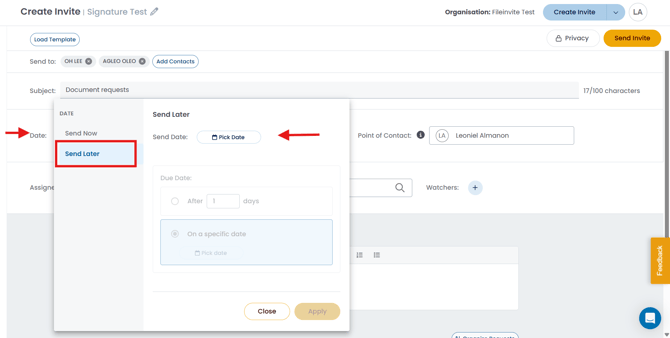
The Invite is saved and will be sent automatically on the scheduled date.
Scheduling Bulk Invites
You can also schedule Bulk Invites to Contact Lists:
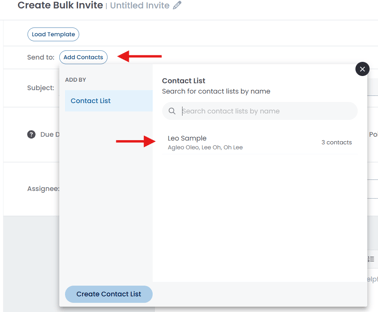
- Choose your Contact Lists and configure the Invite
- Select Send Later and set your dates
- Review the preview showing scheduled dates and contact count
- Click Confirm to schedule
See Creating Bulk Invites for complete instructions.
Managing Scheduled Invites
Scheduled Invites appear in Manage Invites with a Scheduled status badge.
To find scheduled Invites:
- Click the Invites icon in the left sidebar and select Manage Invites
- Click the Filters dropdown
- Select Status > Scheduled
To edit a scheduled Invite:
- Open the scheduled Invite from Manage Invites
- Make your changes (contacts, documents, messages, dates)
- You can also:
- Change the scheduled send date
- Switch to Send Now if you want to send immediately
- Save your changes
Note: Once the scheduled send date passes and the Invite is sent, it behaves like any other active Invite.
Invite Log Tracking
The Invite Log records both:
- The date and time the Invite was scheduled
- The actual date and time the Invite was sent
To access the Invite Log, open the relevant Invite and click Invite Actions > Invite Log.
💡 Best Practice: Use relative due dates ("After X days") when scheduling Invites far in advance. This ensures borrowers always have adequate time to respond, regardless of when the Invite is actually sent.
🎉 Scheduled and ready — your Invites will go out exactly when you need them to! 🎉
Note: Schedule Send is for one-time future-dated Invites. If you need to collect the same documents from the same borrowers on a repeating cadence — such as annual financials or quarterly covenant packages — see Recurring Invites.