
If your FileInvite Login URL ends in fileinvite.com, please use this knowledge base instead.
When to Use Contact Lists & Bulk Send
Use Contact Lists and Bulk Send when you need to:
- Collect the same documents from multiple borrowers or clients
- Process loan servicing requests at scale
- Send annual compliance document requests to large portfolios
- Onboard multiple clients with identical requirements
- Send renewal documentation to groups of borrowers
Creating a Contact List
Method 1: Search and Multi-Select
- Navigate to Contacts > Contact Lists
- Click Create New Contact List
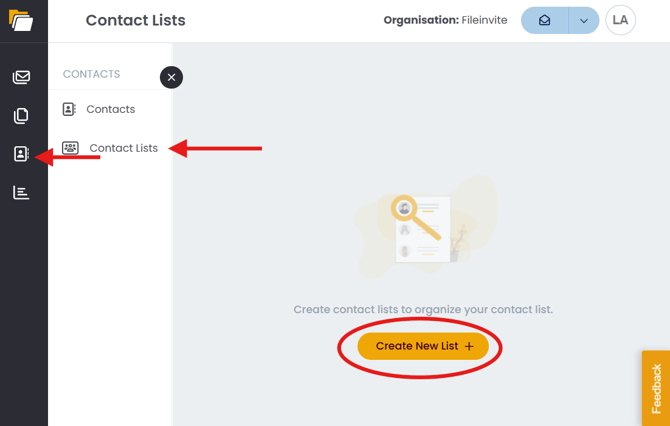
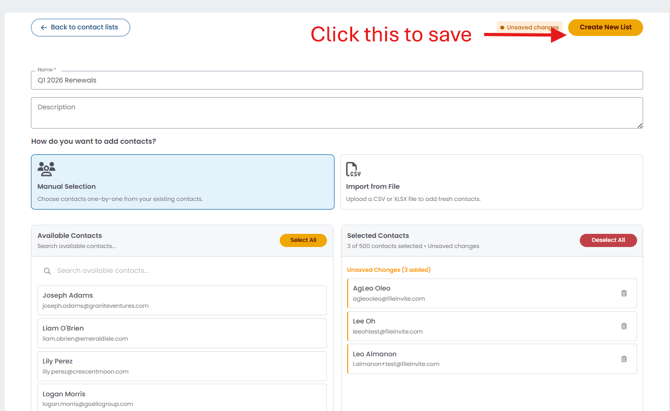
- Name your list (e.g., "Q1 2026 Renewals")
- Use the search function to find contacts
- Select up to 500 contacts using checkboxes
- Click Create New List to Save
Method 2: CSV Import
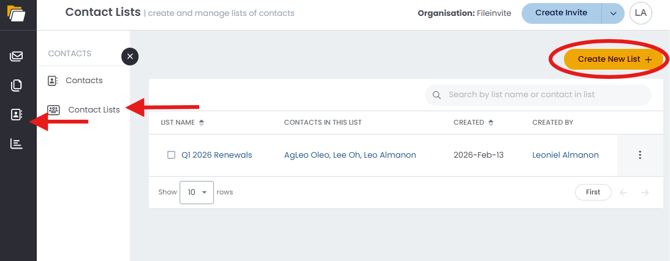
- Click the Contacts icon in the left sidebar, then select Contact Lists
- Click Create New Contact List
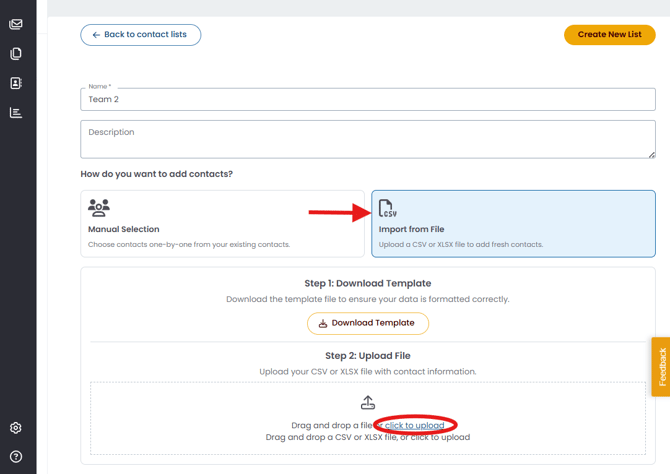
- Name your list
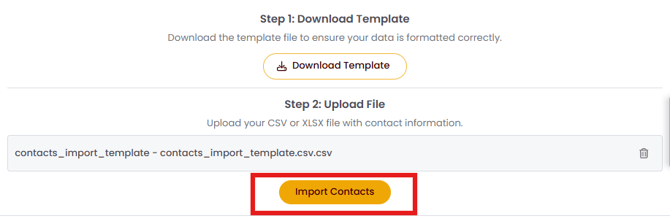
- Click Import from CSV
- Upload your CSV file with contact information
- Map CSV columns to contact fields
- Review and confirm the import (up to 500 contacts)
- Click Import Contacts to proceed and with the right format, it will automatically load in your contact lists
Sending Bulk Invites
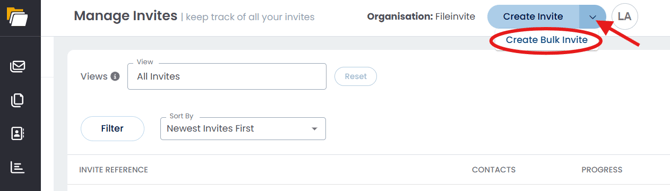
- Click the dropdown chevron (▾) next to Create Invite in the top-right corner of any FileInvite page
- Select Create Bulk Invite from the dropdown
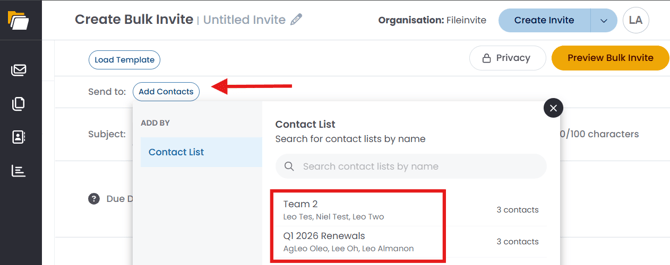
- Choose one or more Contact Lists to include
- Configure your invite settings:
- Add request templates
- Set due dates
- Configure any additional options
- Click Preview Bulk Invite to review all recipients
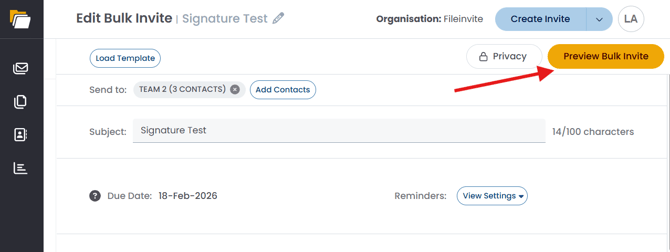
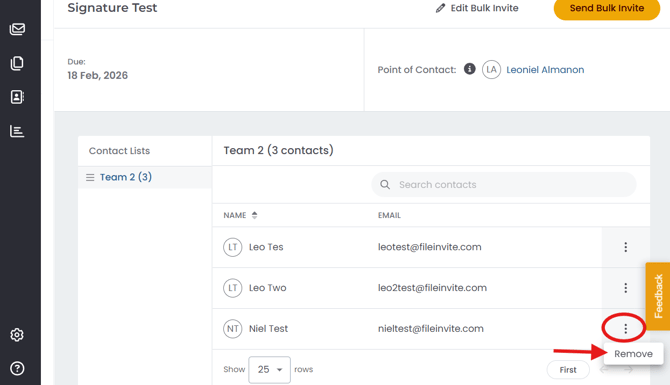
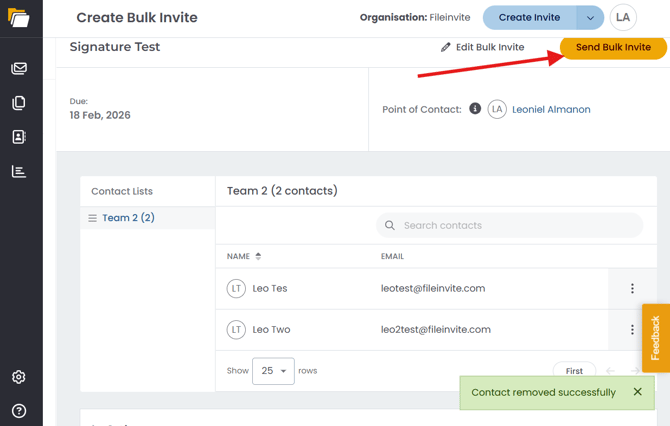
- Exclude specific contacts if needed by clicking the three dots next to them from the preview
- Click Send Bulk Invites once done
Each contact receives their own unique invite link and can upload documents independently.
Managing Bulk Invites
Saved Drafts
- Bulk invite drafts are saved as a single record
- You can pause creation and return later without cluttering your draft list
- Drafts preserve all settings including selected Contact Lists and exclusions
Finding Invites Sent to a Contact List
- Click the Invites icon in the left sidebar and select Manage Invites
- Click the Filters button
- Select Contact List from the filter options
- Choose the specific Contact List
- View all invites sent to that list
What Recipients Experience
- Each contact receives a personalized invite email with their unique link
- Contacts cannot see other recipients on the same bulk send
- Each invite is tracked separately in your Manage Invites view
- Recipients upload documents to their individual invite as usual
Tips & Best Practices
- Organize Contact Lists by use case (e.g., "Annual Tax Documents", "Loan Renewals 2026")
- Review the preview carefully before sending to ensure the right contacts are included
- Use the exclude feature to remove contacts who may have already submitted documents
- Name your Contact Lists descriptively for easy identification later
- Keep Contact Lists updated by adding new contacts or removing inactive ones
- Use the Contact List filter regularly to monitor progress on bulk sends
Limitations
- Maximum 500 contacts per Contact List
- Contact Lists can only include contacts already in your system
- Bulk invites use the same request templates for all recipients
🎉 Bulk Invites sent — hundreds of borrowers notified in a single action! 🎉