
If your Fileinvite Login URL ends in fileinvite.com, please use this knowledge base instead.
Getting Started
Before creating a Recurring Invite, you'll need an existing template — all Recurring Invites must be based on a template. See Create a New Template if you need to set one up first.
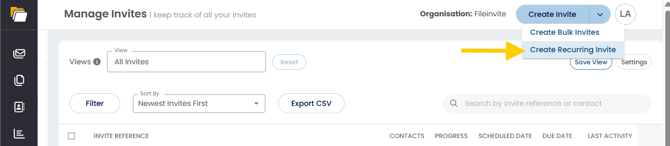
Steps to Create a Recurring Invite- Click the dropdown chevron (▾) next to the Create Invite button in the top-right corner and select Create Recurring Invite
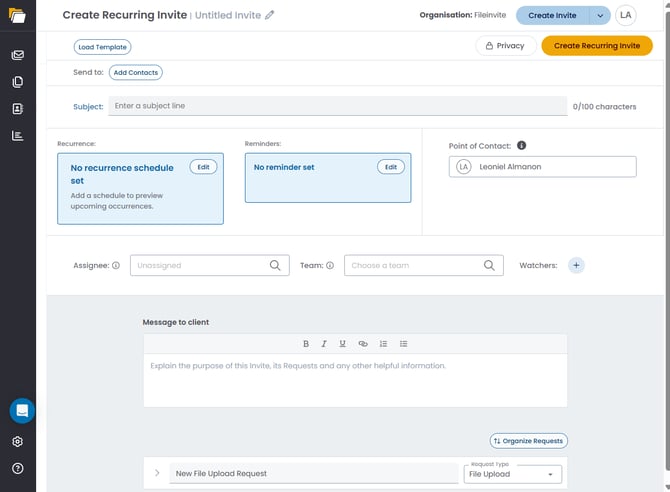
- Click the pencil icon next to Untitled Invite in the page header to name the schedule
- Use a descriptive name such as "Annual Financials — ABC Corp" so your team can identify it in the Recurring Invites list
- Click Load Template to load an existing template's requests into the Invite, or build your requests manually using the request builder at the bottom of the form
- Click Add Contacts next to Send to and search for the contacts who will receive each occurrence
- Enter a Subject line for the Invite email (up to 100 characters)
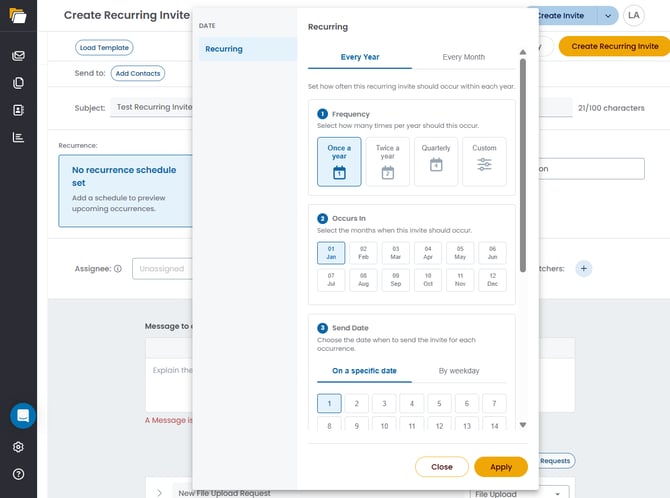
- Click Edit on the Recurrence card to set the cadence. A modal opens with two top-level tabs — Every Year and Every Month — each with their own configuration steps: Every Year:
- ① Frequency — select how many times per year the Invite should send: Once a year, Twice a year, Quarterly, or Custom
- ② Occurs In — select the month(s) when each occurrence should send (Jan–Dec grid)
- ③ Send Date — choose the day within the month to send, either On a specific date (date picker) or By weekday
- Configure which day of the month the Invite sends on a monthly cadence
- Click Edit on the Reminders card to configure automatic follow-up reminders for each occurrence
- Optionally, set the Point of Contact, Assignee, Team, and Watchers fields
- Add a Message to client in the rich-text field — this message is included in every occurrence sent to borrowers
- Click Create Recurring Invite in the top-right corner to activate the schedule
Managing Recurring Invites
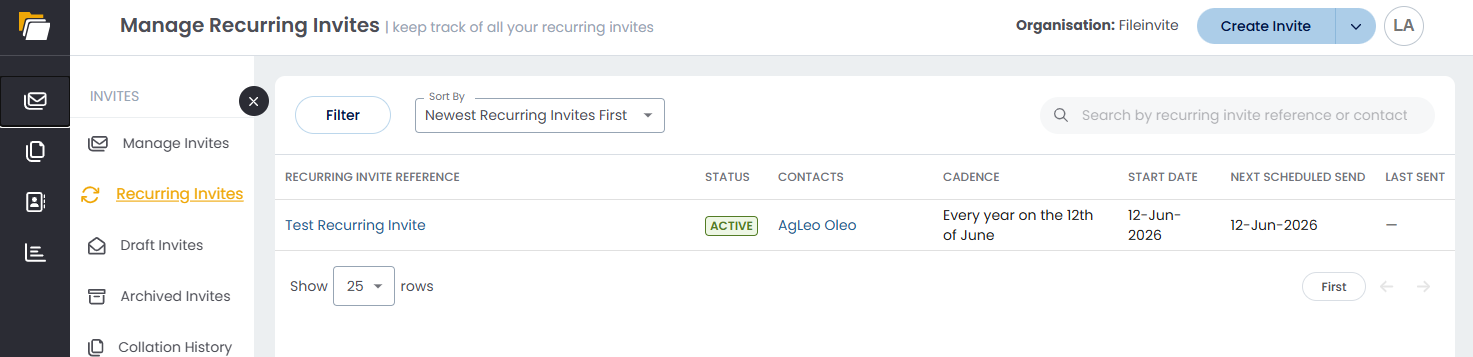
Navigate to Recurring Invites in the left sidebar to open the Manage Recurring Invites page. Each schedule is listed with the following columns:
| Column | Description |
|---|---|
| Recurring Invite Reference | The name of the schedule — click it to open and edit the schedule |
| Status | Active (green badge) or paused |
| Contacts | The contacts assigned to the schedule |
| Cadence | Plain-English description of the schedule, e.g., "Every year on the 12th of June" |
| Start Date | The date the first occurrence was or will be sent |
| Next Scheduled Send | The date of the next upcoming occurrence |
| Last Sent | The date the most recent occurrence was sent |
Use the Filter button to narrow the list, the Sort By dropdown to reorder results, or the search bar to find a schedule by recurring invite reference or contact name.
Viewing a Recurring Invite
Click a schedule name to open the View Recurring Invite page. This page shows:
- The Recurrence card — displays the cadence in plain English, the Ends On date, and a preview of the next upcoming occurrences
- The Reminder card — shows the configured reminder, or "No reminder set" if none has been configured
- The Point of Contact, Assignee, Team, and Watchers fields
- A MANAGE INVITES tab listing every generated occurrence with its Invite Reference, Status (e.g., Scheduled), Contacts, Progress, Scheduled Date, Due Date, and Last Activity
- A REQUESTS tab showing the document requests included in the schedule
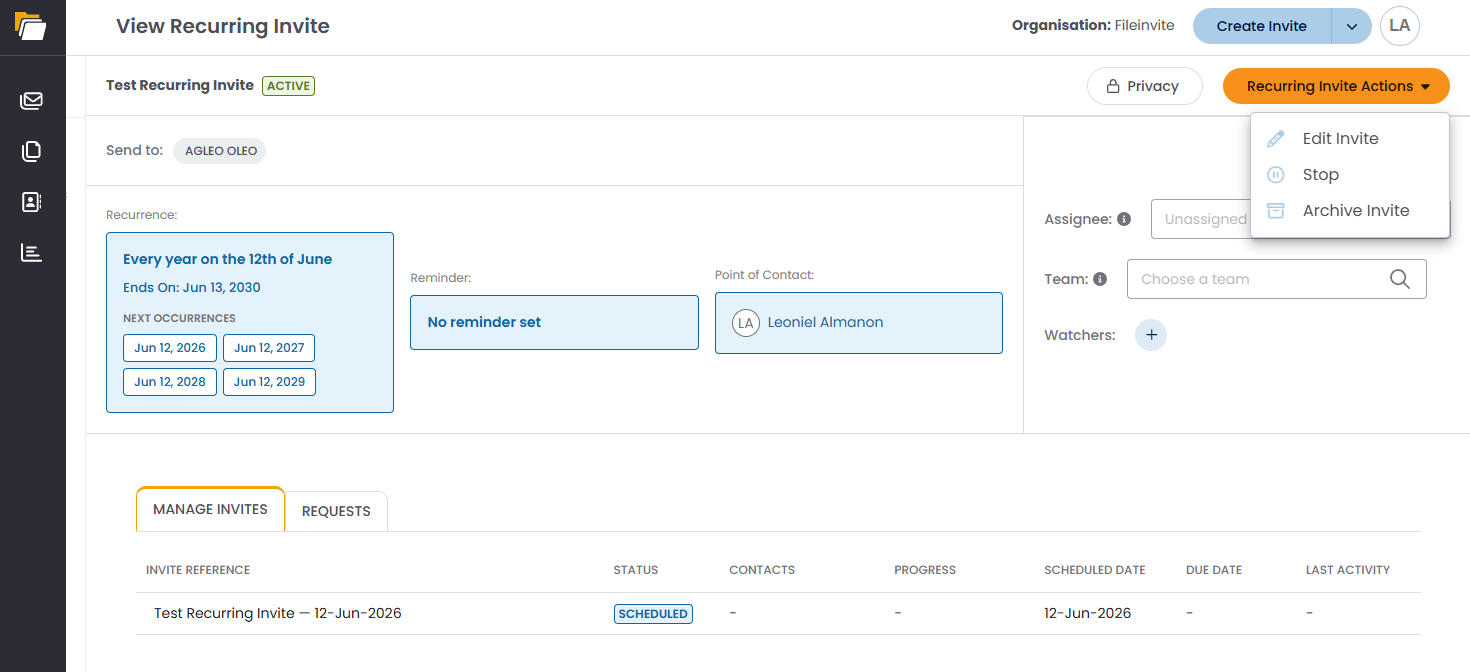
Recurring Invite Actions
From the View Recurring Invite page, click the Recurring Invite Actions dropdown to manage the schedule:
- Edit Invite — update the subject, message, contacts, recurrence, or reminders. Changes apply to all future occurrences; past occurrences are not affected
- Stop — permanently stops the schedule from sending any further occurrences
- Archive Invite — archives the schedule and removes it from your active list
Important Notes :
- If using a template, any changes to the document checklist should be made on the underlying template — the change will apply to all future occurrences.
- Contacts added to a Recurring Invite receive every future occurrence. Edit the schedule to remove contacts who should no longer receive sends.
- Stop permanently ends the schedule — no further occurrences will be sent. This cannot be undone.
- Archive Invite removes the schedule from your active list. Past occurrences already sent are not affected.
💡 Best Practices:
- Name schedules to include the borrower or loan type (e.g., "Quarterly Covenant Package — Johnson Corp") so your team can identify each schedule at a glance
- Set due dates on each occurrence so borrowers have a clear submission deadline
- Review contact lists periodically to keep them aligned with your current borrower portfolio
🎉 Your Recurring Invite is now active — FileInvite will handle every future send automatically. 🎉