
If your Fileinvite Login URL ends in fileinvite.com, please use this knowledge base instead.
Note: This article covers notifications sent to your Contacts. To change the notifications you receive about your own Invites, see Managing Notification Preferences.
Accessing Contact Notification Settings
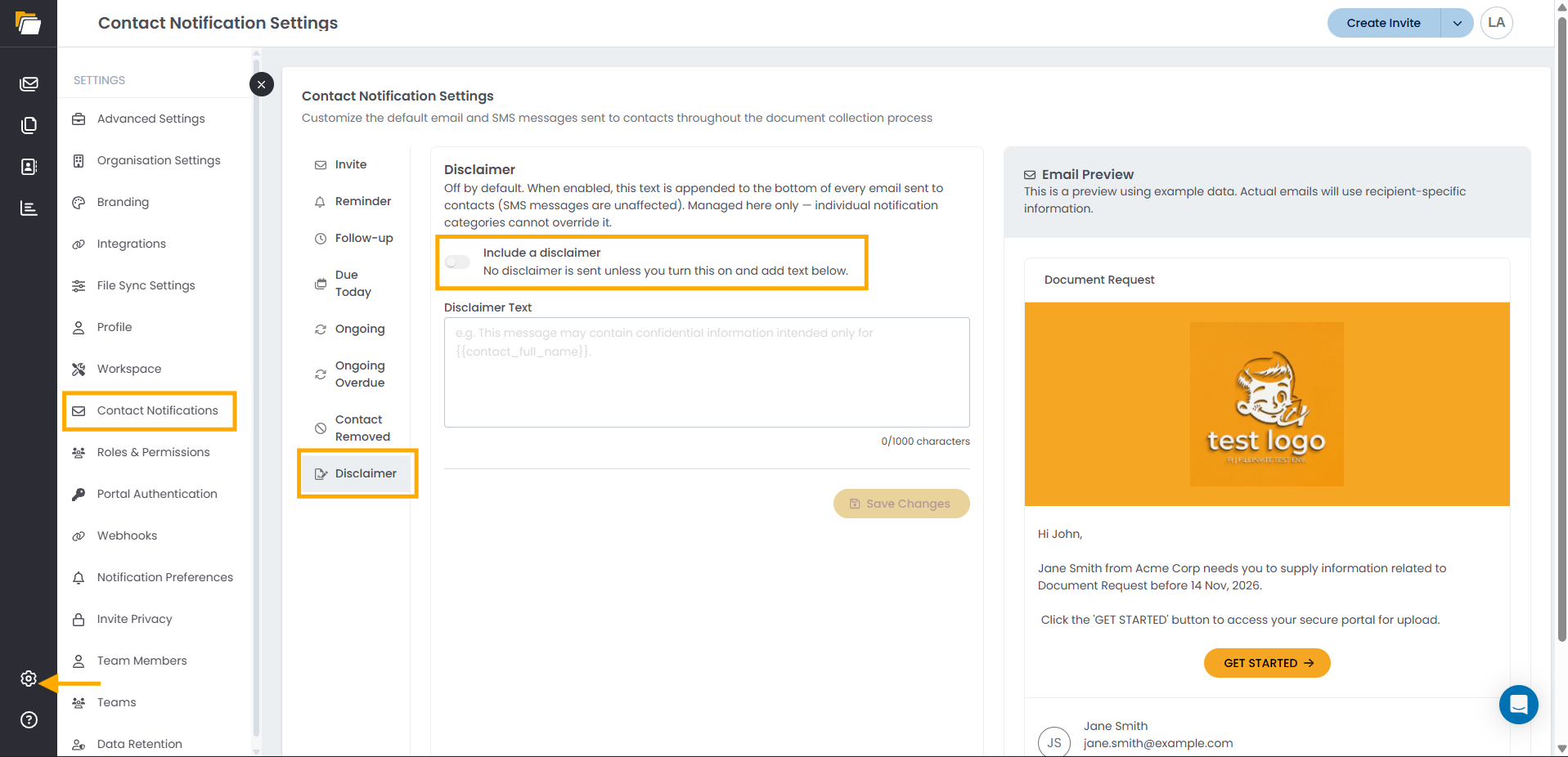
- Click the Settings (gear) icon at the bottom of the left sidebar
- Select Contact Notifications
The page has three areas:
- Notification tabs (left): one tab for each type of Contact notification, plus the Disclaimer tab
- Editor (centre): the settings and message content for the selected tab
- Email Preview (right): shows how the email will look to your Contacts, using example data. Actual emails use each Contact's details.
Notification Types
| Tab | When it's sent |
|---|---|
| Invite | When turned off, FileInvite will send the system default subject and message for this email. Turn this on to customize the content. |
| Reminder | Before the due date, based on the Invite's Almost Due Reminder setting |
| Follow-up | Sent to contacts after they have submitted some but not all required documents. |
| Due Today | Sent to contacts on the due date of their document submission. |
| Ongoing | Sent to contacts as an ongoing reminder to action outstanding document requests. |
| Ongoing Overdue | Sent to contacts as an ongoing reminder when their document submission is overdue. |
| Contact Removed |
Sent to contacts when they are removed from an invite. This message lets them know that they are no longer required to submit documents. |
| Disclaimer |
Off by default. When enabled, this text is appended to the bottom of every email sent to contacts (SMS messages are unaffected). Managed here only — individual notification categories cannot override it. |
Note: These tabs control what each notification says. When reminders are sent is set on each Invite or template under Almost Due Reminder and Ongoing Reminder. See Create a Template.
Editing a Notification
Each notification tab has a customisation toggle. When the toggle is off, FileInvite sends the system default subject and message for that notification. Turn it on to write your own.
- Select the notification tab you want to change
- Turn on the customisation toggle
- Edit the email subject and message
- Edit the SMS message separately, if required
- Check your changes in the Email Preview panel
- Click Save Changes
To go back to the system default, turn the toggle off and click Save Changes.
Important Notes:
- Contact notification settings are saved per user. Your changes apply only to notifications sent for your Invites, and other team members keep their own settings.
- You can personalise messages with placeholders such as
- When the Invite notification is customised, the message entered when creating an Invite is not included in the email.
Adding a Disclaimer to Contact Emails
You can add a disclaimer, such as confidentiality or compliance wording, to the bottom of every email sent to your Contacts.
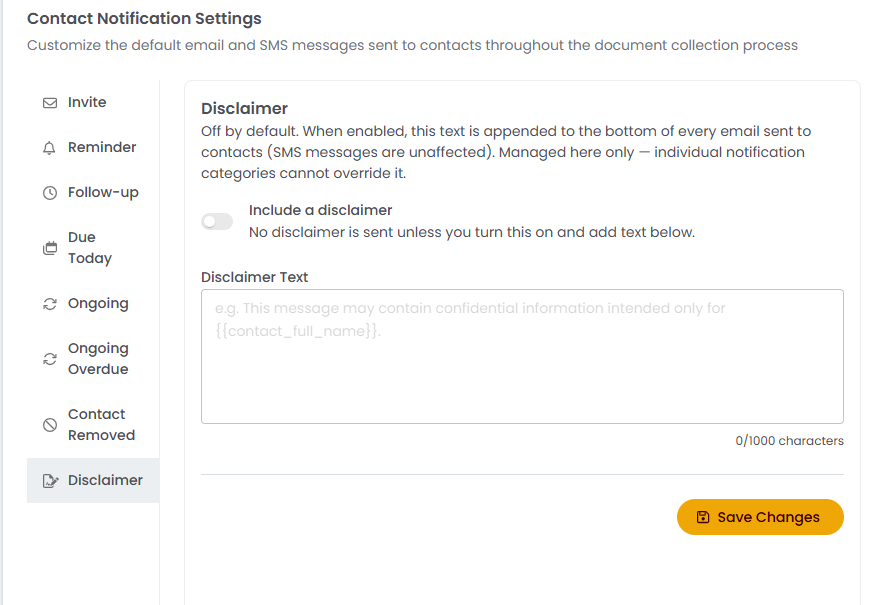
- Click the Disclaimer tab
- Turn on the Include a disclaimer toggle
- Enter your wording in the Disclaimer Text box
- Click Save Changes
Important Notes:
- The disclaimer is off by default. No disclaimer is sent unless the toggle is on and text has been entered.
- The disclaimer is added to every email sent to Contacts. SMS messages are not affected.
- The disclaimer is managed only on this tab and cannot be changed or turned off for individual notification types.
- The Disclaimer Text box accepts up to 1,000 characters and supports placeholders such as .
💡 Best Practices:
- Send yourself a test Invite after making changes to check the final email and SMS in your own inbox and phone
- Keep SMS messages short, since longer messages may be split into multiple texts
🎉 Success! Contacts will now receive notifications that match your organisation's wording! 🎉