
If your Fileinvite Login URL ends in fileinvite.com, please use this knowledge base instead.
Navigating the Template Library
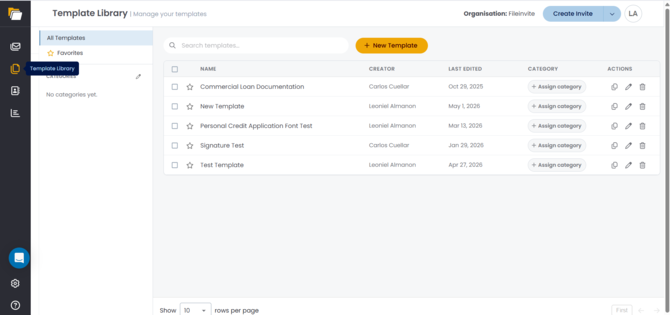
Click Template Library in the left sidebar to open the library. The page shows all templates across your account with their Name, Creator, Last Edited, Category, and Actions.
The left panel has three sections:
- All Templates — shows every template in your account
- Favorites — shows templates you've starred for quick access
- Categories — lists any categories you've created; click one to filter the template list
Use the Search templates... bar to find a template by name.
Creating a New Template
Click + New Template at the top of the library to create a new template from scratch. See Create a New Template for full instructions.
Template Actions
Each template row has three action icons on the right:
- Duplicate (copy icon) — creates a copy of the template
- Edit (pencil icon) — opens the template editor
- Delete (trash icon) — permanently deletes the template
To mark a template as a favourite, click the star icon to the left of the template name. Starred templates appear under Favorites in the left panel for quick access.
Working with Selected Templates
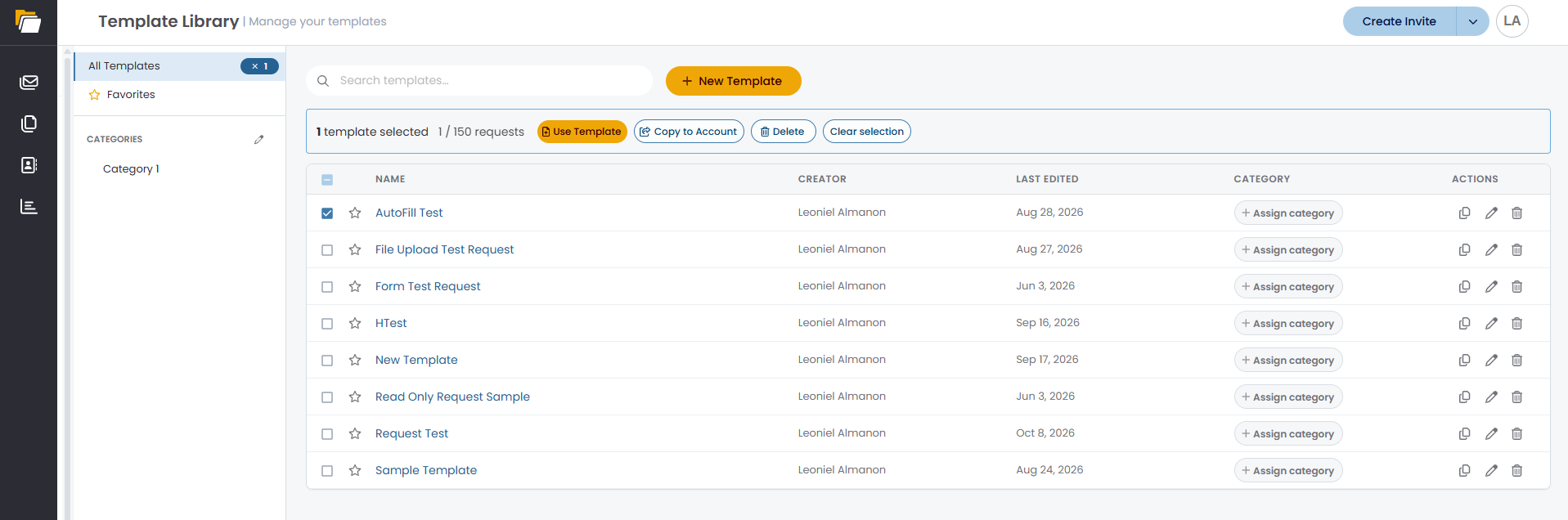
Tick the checkbox next to one or more templates to open the selection bar above the template list. To select every template in the list, tick the checkbox in the column header.
The selection bar shows how many templates are selected and the total number of requests they contain (for example, 1 / 150 requests), along with these actions:
- Use Template: Create a new Invite from the selected template(s)
- Copy to Account: Copy the selected template(s) to another account
- Delete: Delete the selected template(s)
- Clear selection: Deselect all templates
Copying a Template to Another Account
Copy to Account creates an independent copy of a template in another account. The copy can be customised in that account without affecting the original.
- Tick the checkbox next to the template
- Click Copy to Account in the selection bar
- Select the account to copy the template to
- Click Copy
Important Notes:
- The original template stays in your library unchanged
- Only Organisation Owners can copy templates between accounts
- If there are no other accounts available, the modal displays "There's no other account to copy to." and Copy remains disabled
- Multiple templates can be copied in one action
Deleting Multiple Templates
- Tick the checkbox next to each template you want to delete
- Click Delete in the selection bar
- Confirm the deletion when prompted [CONFIRM: confirmation prompt wording]
Note: Deleted templates cannot be recovered. Invites already created from them are not affected.
To delete a single template, click the trash icon in the Actions column instead.
💡 Best Practice: Before deleting templates that belonged to a departing team member, use Copy to Account to keep any your team still needs.
Creating and Assigning Categories
Categories let you group templates by loan type or workflow so your team can filter the list quickly.
To create a category:
- Click the pencil icon next to Categories in the left panel
- In the Manage Categories modal, click + New category
- Enter a category name and save
- Click Done to close the modal
To assign a template to a category:
- Locate the template in the library
- Click + Assign category in the Category column
- In the Assign to Category modal, select the relevant category from the list
- Click Save
Note: You must create at least one category before you can assign templates. If no categories exist, the modal will show "No categories available. Create a category first."
A template can be assigned to multiple categories — one master template can appear under every relevant loan type without any duplication.
Important Notes
- Categories are shared across your team. Use clear, consistent naming so everyone can navigate the library the same way.
- Deleting a template is permanent and cannot be undone.
💡 Best Practices:
- Star your most frequently used templates so they're always accessible under Favorites
- Structure categories by broad loan type (e.g., "Residential," "Commercial," "Loan Servicing") for easy filtering
- Assign each template to all categories where it applies rather than creating separate copies per scenario
🎉 Your templates are organised and ready to use! 🎉