
If your Fileinvite Login URL ends in fileinvite.com, please use this knowledge base instead: https://help.fileinvite.com/
Overview
PDF Redactions detects and masks sensitive numbers on uploaded documents, so they're only visible to those with the correct authority. Three redaction types are currently supported:
| Redaction Type | Full Name | Available For |
|---|---|---|
| TFN | Tax File Number | Australia (AU) accounts |
| IRD | Inland Revenue Department number | New Zealand (NZ) accounts |
| SSN | Social Security Number | United States (US) accounts |
Getting Started
Before enabling PDF Redactions, you'll need to have created or be editing a request within an Invite. See Creating an Invite if you haven't set one up yet.
If your account uses the previous Create Invite experience, contact FileInvite Support first so we can enable PDF Redactions for your account.
Steps to Enable PDF Redaction
- Open the request you want to apply redaction to
- Expand Additional Options
- This reveals the PDF Redactions section
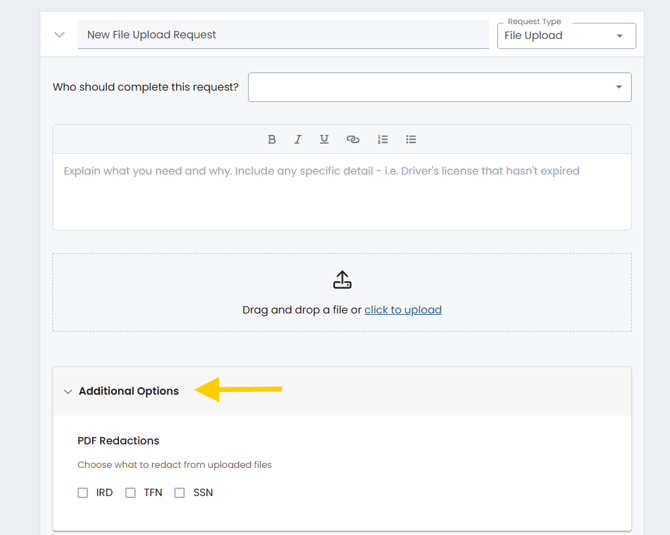
- This reveals the PDF Redactions section
- Select the redaction types you need
- Choose one or more of IRD, TFN, or SSN, depending on the number type present in the documents you're requesting
Note: PDF Redactions is a request-level option, so be sure to enable it for each relevant request in your Invite—not just once for the whole Invite.
Accessing Your Redacted Files
When a document containing a supported sensitive number is uploaded, FileInvite stores the file in its original form in the Original folder. When you collate the files or download the PDF folder copy, the converted file will have the relevant number redacted.
Important Notes
- Availability by account country: TFN Redaction requires an AU account, IRD Redaction requires an NZ account, and SSN Redaction requires a US account. You can confirm your account's country in your profile settings.
- Enabling on the previous Create Invite experience: If your account uses the previous (G1) Create Invite experience, contact FileInvite Support to have PDF Redactions enabled before the option will appear under Additional Options. Accounts on the current (G2) Create Invite experience have PDF Redactions available directly.
- Format-specific detection: Each redaction type only detects its own numeric format. For example, TFN Redaction detects 9-digit Tax File Numbers but does not detect 11-digit Australian Business Numbers (ABNs)—an ABN may occasionally be partially redacted if its structure is mistaken for a TFN. The same principle applies to IRD and SSN: each is matched against its own number format, and other sensitive numbers on the same document won't be redacted unless their own toggle is also enabled.
🎉 Success! Sensitive numbers are now redacted automatically 🎉