
If your FileInvite Login URL ends in fileinvite.com, please use this knowledge base instead.
Ongoing reminders replace overdue reminders and are designed to work with both standard and optional due dates. Unlike overdue reminders — which stopped automatically 14 days after a due date — ongoing reminders continue until the Invite is completed or are manually stopped, with no automatic cutoff.
Getting Started
Before configuring reminders, open an existing Invite from the Manage Invites page. See Invites Management Page for more details.
How Ongoing Reminders Work
Once enabled, ongoing reminders send notifications to borrowers on a recurring basis until one of the following occurs:
- The borrower completes the Invite by clicking I'm Finished in the Client Portal
- A sender manually stops the reminders via Invite Actions > Stop Reminders
Stopped reminders can be resumed at any time.
Note: Previously, overdue reminders stopped automatically 14 days after the due date. Ongoing reminders have no automatic cutoff — they continue until the Invite is completed or manually stopped, regardless of whether a due date is set or has passed.
Template Variants
Ongoing reminders use two template variants based on the Invite's due date status:
- Overdue variant — sent when the Invite has a due date that has already passed
- Standard ongoing variant — sent when the Invite has no due date, or the due date has not yet passed
Both variants can be customised. See Preferences Settings for details on editing notification content.
Steps to Configure Ongoing Reminders
- From the Manage Invites page, open the relevant Invite
- Click Invite Actions and select Edit Invite
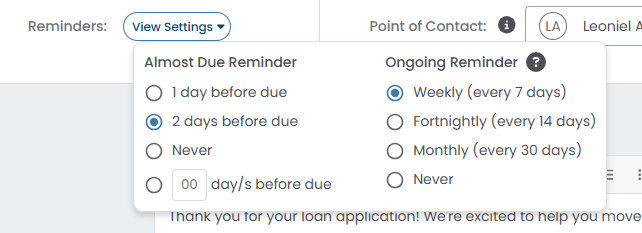
- Next to Reminders, click View Settings
- Under Ongoing Reminder, select your desired frequency:
- Weekly (every 7 days)
- Fortnightly (every 14 days)
- Monthly (every 30 days)
- Never (disables ongoing reminders)
- Click Save
Steps to Stop or Resume Ongoing Reminders
- From the Manage Invites page, open the relevant Invite
- Click the Invite Actions dropdown
- Select Stop Reminders to pause, or Resume Reminders to restart
Important Notes:
- Ongoing reminders do not stop automatically based on a due date — they must be manually stopped or the Invite must be completed.
- If an Invite has both a due date and ongoing reminders set, the overdue variant will begin sending once the due date passes.
💡 Best Practice: For Invites with no due date, set a reminder frequency that balances persistence with borrower experience — weekly reminders are a common starting point.
🎉 Your borrowers will now receive reminders until their Invite is complete! 🎉