
Accessing the Invites Overview Page
Navigate to Invites > Manage Invites from the sidebar to access the Invites Overview page.
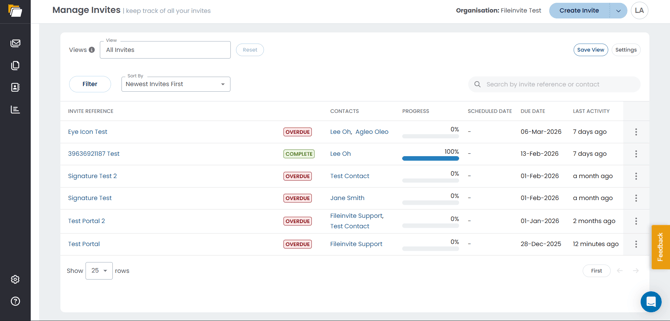
Understanding the Invites List
The Invites list displays key information for each Invite:
- Invite Name – Your internal identifier for the Invite
- Contacts – Full names of contacts displayed inline (first and last names visible without hovering)
- Status – Current state of the Invite (Draft, Sent, Progressing, Scheduled, Closed, etc.)
- Due Date – When documents are expected
- Progress – Visual indicator of completion status
Note: When an Invite has multiple contacts and space is limited, names truncate gracefully with a tooltip showing the full list when you hover.
Searching for Invites
Use the search bar at the top of the page to find Invites quickly. You can search by:
- Invite reference – The unique identifier for the Invite
- Contact full name – e.g., "John Smith"
- Contact first name – e.g., "John"
- Contact last name – e.g., "Smith"
- Contact email address – e.g., "john@example.com"
Simply type your search term and press Enter to see matching results.
Filtering Invites
Click the Filters dropdown to narrow your Invite list by:
- Status – Draft, Sent, Progressing, Scheduled, Closed, etc.
- Due Date – Filter by date range
- Team – Filter by assigned team
- Contact List – View all Invites sent to a specific Contact List
- Assignee – Filter by assigned team member
To remove a filter, click the x icon next to it.
Invite Actions
Click on any Invite to open the Invite Overview, where you can:
- View detailed status and progress
- Access uploaded documents
- Send messages to contacts
- Approve or reject submitted documents
- View activity history
- Edit Invite settings
- Stop Reminders — Stop Almost Due Reminders for this Invite. Ongoing Reminders must be set to Never separately.
Bulk Actions
You can also act on multiple Invites at once. Each row on the Manage Invites page includes a checkbox, and selecting one or more Invites reveals a bulk action bar with options to Archive, Change Point of Contact, or Change Due Date across all selected Invites.
For full details, see Bulk Actions on the Manage Invites Page.
🎉 Everything you need to manage your Invites is right here in one place! 🎉