
Learn how to use bulk actions to manage multiple Invites simultaneously from the Manage Invites page. Instead of updating Invites one by one, you can select several at once and apply changes in a single step.
If your Fileinvite Login URL ends in fileinvite.com, please use this knowledge base instead.
Getting Started
Navigate to your FileInvite Dashboard and select Invites > Manage Invites from the sidebar.
Selecting Invites
Each row on the Manage Invites page now includes a checkbox. To select Invites for a bulk action:
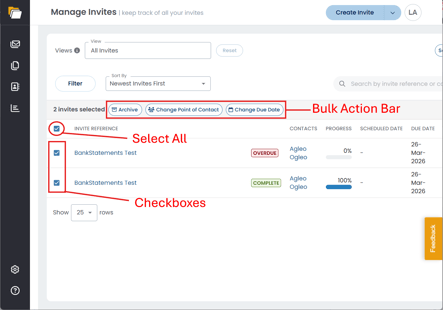
- Click the checkbox next to each Invite you want to include
- To select all visible Invites on the current page, click the Select All checkbox at the top of the list
- Once one or more Invites are selected, a bulk action bar appears at the top of the list
Select All applies only to the Invites visible on the current page. If your Invite list spans multiple pages, navigate to each page to select additional Invites.
Available Bulk Actions
The bulk action bar provides three options:
Archive
- Select the Invites you want to archive
- Click Archive in the bulk action bar
- A confirmation modal appears showing the number of selected Invites and the impact of archiving
- Confirm to archive all selected Invites
Change Point of Contact
- Select the Invites you want to reassign
- Click Change Point of Contact in the bulk action bar
- A confirmation modal appears showing the number of selected Invites
- Choose the new Point of Contact
- Confirm to apply the change across all selected Invites
Note: For more on the Point of Contact role and how it affects borrower-facing communications, see Invite Roles: Point of Contact, Assignee & Watchers.
Change Due Date
- Select the Invites you want to update
- Click Change Due Date in the bulk action bar
- A confirmation modal appears showing the number of selected Invites
- Select the new due date
- Confirm to apply the updated due date across all selected Invites
Note: Due dates are now optional. To remove the due date from all selected Invites, clear the date field rather than selecting a new date. This leaves the selected Invites without a deadline.
After Applying a Bulk Action
Once you confirm a bulk action:
- Changes are applied immediately across all selected Invites
- A success toast notification appears confirming the action
- Your selection is automatically cleared
Important Notes:
- Each bulk action opens a confirmation modal before changes are applied — you can review the number of affected Invites and cancel if needed
- Bulk actions apply only to the Invites you have selected, not the entire Invite list
💡 Best Practices:
- Use filters on the Manage Invites page to narrow your list before selecting Invites, making it easier to target the right group
- Review the confirmation modal carefully to verify the number of selected Invites before applying any action
🎉 You're all set to manage multiple Invites in one go! 🎉