
If your Fileinvite Login URL ends in fileinvite.com, please use this knowledge base instead.
Overview
Data Retention Settings allow account administrators to configure automatic deletion schedules for files and form data uploaded by borrowers. This feature helps organizations manage data lifecycle, reduce storage costs, meet compliance requirements, and minimize security risks by ensuring old files don't remain indefinitely in the system.
Key Features:
- Configurable retention periods from 32 days to 10 years
- Automatic reminder emails at multiple intervals before deletion
- Deletion applies only to returned files—Invites remain intact
- Retention countdown starts from the date your settings are saved, not from when the Invite was created
Important Note: Only Organization Owners and Admins can configure data retention settings. Learn more about user roles and permissions here.
Getting Started
Before configuring data retention, review your organization's document retention policies and compliance requirements. Ensure you understand which files need long-term retention and which can be deleted after processing.
Steps to Configure Data Retention Settings
1. Navigate to Data Retention Settings
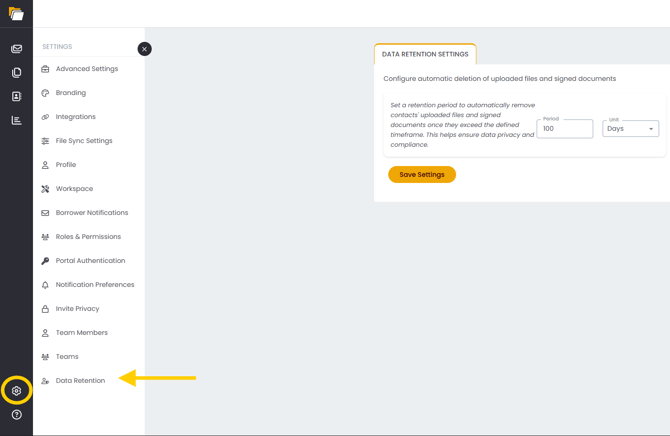
- Click the Settings gear icon in the bottom-left corner of your FileInvite dashboard.
- Click Data Retention to open the retention policy controls.
2. Set Your Retention Period
Enter your desired retention period using the two controls:
- Period: Enter a number in the text field (for example, 100).
- Unit: Select a time unit from the dropdown — Days, Weeks, Months, or Years.
Example: Set Period to 100 and Unit to Days. Files will be deleted 100 days after the date you save the setting.
Note: The retention period starts from the date the retention setting is saved. It does not start from the date the Invite was created or the date files were uploaded. For example, if you save a 100-day retention period on 1 March, the countdown runs from 1 March, even for Invites created months earlier.
3. Save Your Settings
Click Save Settings to activate your data retention policy. The system will begin tracking uploaded files against your configured schedule.
Note: Each time you click Save Settings, the retention countdown resets and starts again from that date. For example, if you set a 100-day period and then save the settings again 40 days later, the full 100-day count restarts from the new save date.
Reminder Emails
The system automatically sends reminder emails at three intervals before deletion begins:
- One month before deletion
- Two weeks before deletion
- One week before deletion
Who receives reminder emails:
- Organization Owners
- Admins
- Point of Contact for the Invite
- Assignees
What the reminders include:
- List of Invites scheduled for deletion
- Exact deletion date
- Number of files affected
- Instructions for extending retention if needed
Review Deletion Scope
What gets deleted:
- Returned files uploaded by borrowers
- Form data submitted through LiveForms
- Original and PDF copies of documents
What remains intact:
- The Invite itself (structure, requests, metadata)
- Invite history and activity logs
- Messages and communications
- Acceptance/rejection status of requests
- File names and upload timestamps (metadata only)
Understanding Reminder Emails
One Month Before Deletion
Subject: FileInvite Data Retention: Files Scheduled for Deletion in 30 Days
Content:
- List of Invites with files approaching deletion
- Total number of files affected
- Exact deletion date
- Link to extend retention if needed
Two Weeks Before Deletion
Subject: FileInvite Data Retention: Files Scheduled for Deletion in 14 Days
Content:
- Updated list of Invites
- Remaining time until deletion
- Instructions for downloading files before deletion
One Week Before Deletion
Subject: FINAL NOTICE: FileInvite Files Will Be Deleted in 7 Days
Content:
- Final warning before deletion
- List of Invites affected
- Urgent call-to-action to extend retention or download files
Best Practices
💡 Align with compliance requirements: Choose retention periods that meet your industry's regulatory requirements (e.g., 7 years for tax documents, 3 years for loan applications).
💡 Download critical files before deletion: For loans requiring long-term archival, download files to your local system or cloud storage before the retention period expires.
💡 Use cloud sync for automatic backup: Connect Google Drive, Box, SharePoint, or OneDrive to automatically save files before retention policies delete them.
💡 Act on reminder emails: Don't ignore retention reminders—you have three opportunities to extend retention or download files before deletion.
💡 Document your policy: Record why you chose specific retention periods for audit and compliance purposes.
💡 Review retention settings annually: As regulations change, periodically review your retention policy to ensure compliance.
Important Considerations
Deletion is permanent: Once files are deleted after the retention period expires, they cannot be recovered. Ensure you have backups of critical documents.
Invite metadata remains: Even after file deletion, the Invite structure, history, and metadata remain accessible for reporting and audit purposes.
Timing is based on your setup date: The deletion schedule is calculated from the last date your retention settings were saved, not from the Invite creation date or individual upload dates. Saving your settings again resets the countdown.
No impact on cloud storage: Files already synced to cloud storage integrations are not affected by FileInvite's data retention policies.
Troubleshooting
Issue: I didn't receive reminder emails
- Verify your email address is correct in your user profile
- Check spam/junk folders for FileInvite emails
- Ensure you have admin or owner permissions
- Confirm the Invite hasn't already been archived
Issue: I need to recover deleted files
Data retention deletion is permanent and cannot be reversed. If you need files after deletion:
- Check your cloud storage integration if enabled
- Review local downloads made before deletion
- Contact the borrower to request file re-upload
Issue: Retention period is too short for my compliance needs
- Navigate to Settings > Data Retention
- Enter a longer retention period (up to 10 years)
- Click Save Settings
- The new retention period applies from the date you save, and the countdown restarts from that date
🎉 Your files, cleaned up automatically and on schedule! 🎉