
If your Fileinvite Login URL ends in fileinvite.com, please use this knowledge base instead.
Note: "Contact Groups" have been renamed to "Contact Lists" throughout FileInvite.
Creating a Contact List
- Click the Contacts icon in the left sidebar
- Click the Contact Lists tab
- Click Create New List
- Enter a Name for your list and an optional Description
- Choose how you want to add contacts:
- Manual Selection — search for and select existing contacts one by one
- Import from File — upload a CSV or XLSX file to add contacts in bulk
- Click Create New List to save
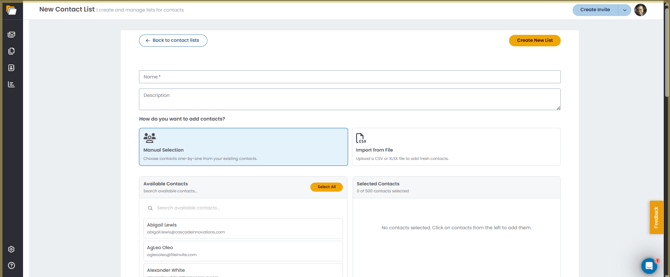
Note: Each Contact List supports a maximum of 500 contacts. There is no limit on the number of lists you can create.
Adding Contacts via CSV or XLSX Import
- On the New Contact List page, select Import from File
- Click Download Template to get a correctly formatted template file
- Fill in your contact information using the template
- Drag and drop your completed CSV or XLSX file into the upload area, or click click to upload to browse for the file
- Click Create New List to save
Note: When importing contacts, existing contacts matched by email address are automatically linked to the list rather than creating duplicates.
Using Contact Lists for Bulk Invites
Contact Lists are designed to work with the Bulk Invite feature. Once you've created a Contact List, you can send document requests to all contacts in the list with a single action.
See Bulk Send Invites for detailed instructions.
Filtering Invites by Contact List
- Click the Invites icon in the left sidebar and select Manage Invites
- Click the Filters dropdown
- Select Contact List
- Choose the Contact List you want to filter by
All Invites associated with that Contact List will appear in the results.
🎉 Your Contact List is ready to use for bulk document collection! 🎉