
If your Fileinvite Login URL ends in fileinvite.com, please use this knowledge base instead.
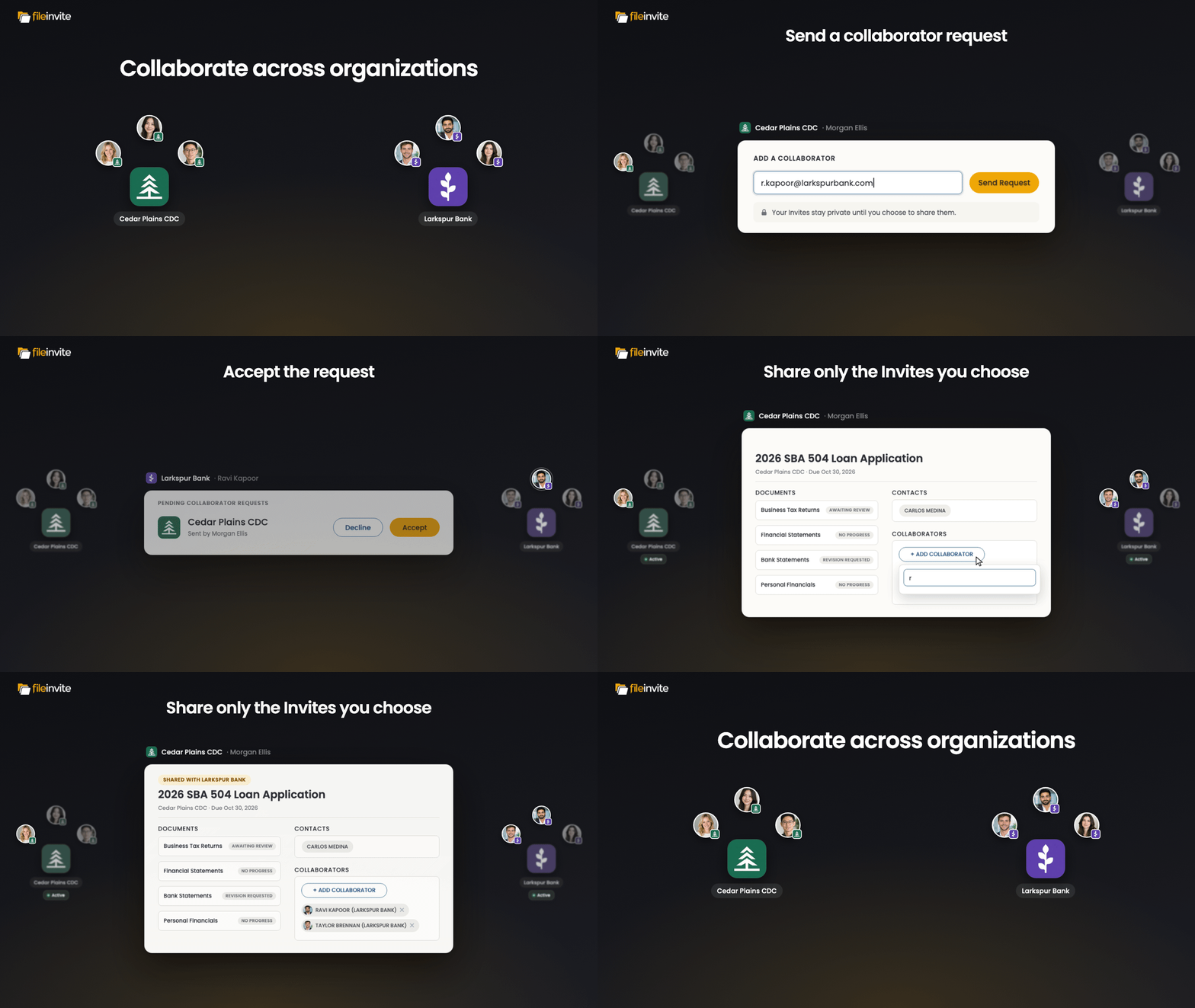
How It Works
Collaboration has two stages:
- Become collaborators: Send a collaborator request to a user at the other organisation. Once they accept, you and that user become collaborators.
- Add each other to Invites: You can then add each other as a Collaborator on specific Invites that have already been created.
Becoming collaborators doesn't share any Invites automatically. Your Invites stay private to your account until you choose to share them.
Sending a Collaborator Request
- Click the Settings (gear) icon at the bottom of the left sidebar
- Select Team Members
- Click the Collaborators tab
- Under Add a Collaborator, enter the email address of a user at the other organisation
- Click Send Request
- In the Send collaboration request? window, review the details and click Send Request to confirm
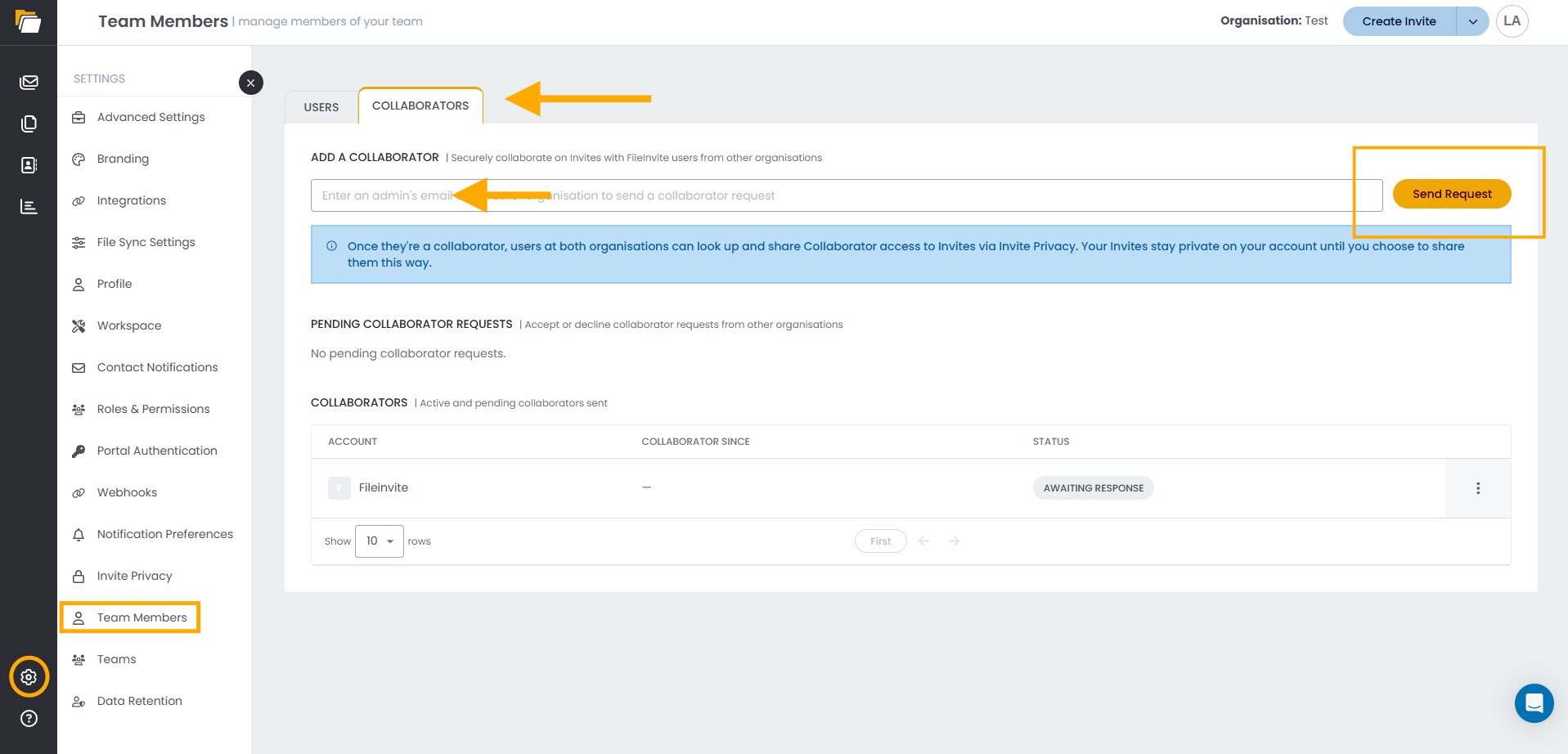
Note: Sending the request means you agree to the collaboration terms shown in the confirmation window.
The request appears in the Collaborators table with its status until the other user responds.
Accepting or Declining a Collaborator Request
Requests sent to you by users at other organisations appear under Pending Collaborator Requests on the Collaborators tab.
Once accepted, you and the sender become collaborators, and each of you appears in the other's Collaborators table.
Adding a Collaborator to an Invite
Collaborators are added to an existing Invite. You can't add them while creating an Invite, so create and save the Invite first.
- Open the Invite
- In the Collaborators section on the right, below Contacts, click Add Collaborator
- Select your collaborator
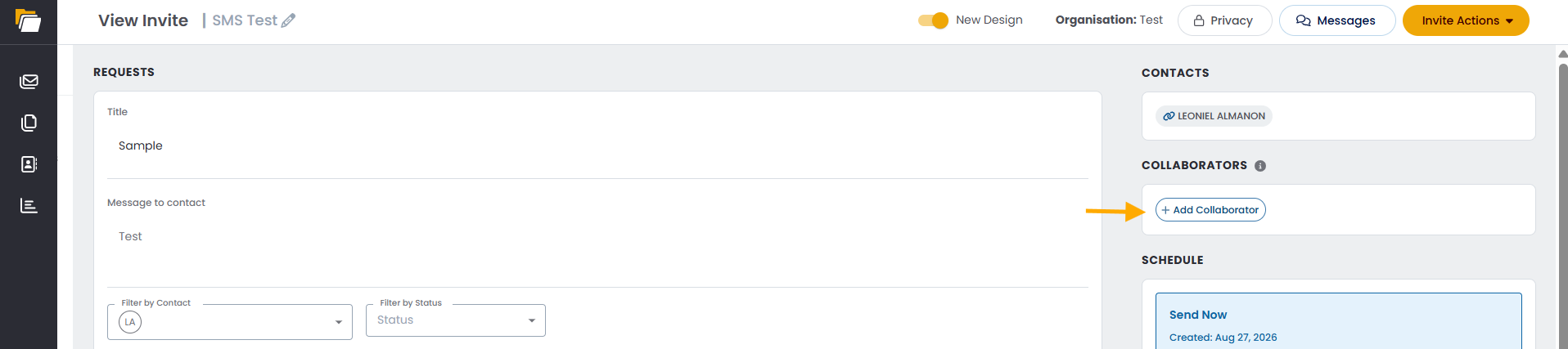
Note: Only users you've already connected with on the Collaborators tab can be added.
What Collaborators Can See and Do
| Access | Your Organisation | Collaborator |
|---|---|---|
| View requested documents | ✅ | ✅ |
| View returned documents | ✅ | ✅ |
| Message the Contact | ✅ | |
| Accept or reject documents | ✅ | |
| Edit or add requests | ✅ |
Removing Access
To remove a collaborator from an Invite:
- Open the Invite
- In the Collaborators section, [CONFIRM: remove control, e.g. X icon next to their name]
To end a collaboration with a user:
- Go to Settings > Team Members > Collaborators
💡 Best Practices:
- Check the Collaborators section before sharing sensitive documents
- Remove a collaborator's access to an Invite once their part of the process is complete
For more on internal roles, see Invite Roles: Point of Contact, Assignee & Watchers.
🎉 Success! Your collaborators can now see the same requests and documents! 🎉