
This feature is available to our Connect and Connect+ plan tiers. Please contact your account manager for further details.
When to Use Privacy Controls
Use invite privacy controls when you need to:
- Protect sensitive borrower or client information
- Limit access to specific deals or portfolios
- Comply with data governance and confidentiality requirements
- Control visibility within teams working on different loan types or portfolios
Setting Privacy Levels
Available Privacy Options
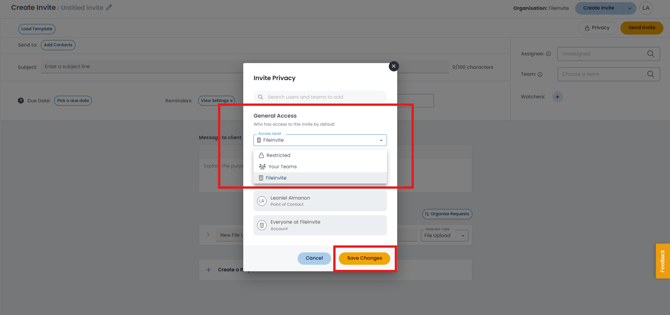
Each invite can be set to one of three privacy levels:
- Restricted - Only specified users can access the invite
- Team - All members of assigned teams can access the invite
- Account-wide - All users in your account can access the invite (default)
How to Set Privacy on an Invite
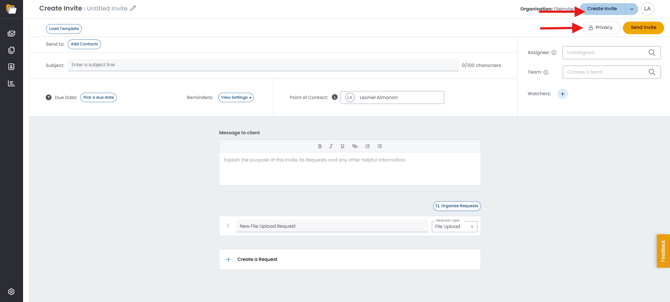
- Open any invite (new or existing)
- Click the Privacy button at the top of the invite
- Select your desired privacy level:
- Restricted: Manually add individual users who should have access
- Team: Select which teams should have access
- Account-wide: All account users can view
- Click Save
Automatic Access Assignment
Users automatically receive access to an invite when they're added to these sidebar fields:
- Point of Contact
- Assignee
- Watchers
This ensures anyone working on the invite can access it without manual sharing adjustments.
What Users See :
When Users Have Access
Invites appear normally in their Manage Invites view with full access to all content and features.
When Users Don't Have Access
- The invite is completely hidden from their Manage Invites page
- If they attempt to access the invite via a direct link, they'll see a "not shared with you" page
- The page displays the invite creator's contact information so they can request access
Audit Trail
All privacy changes are tracked in the Invite Log, accessible via Invite Actions > Invite Log, including:
- When privacy settings were changed
- Who made the change
- What the previous and new settings were
This provides full auditability for compliance purposes.
Tips & Best Practices
- Set account-level defaults that match your most common use case to reduce manual configuration
- Use Team-level privacy for portfolios managed by specific groups
- Use Restricted privacy for high-sensitivity deals requiring explicit approval
- Review the activity log regularly to monitor privacy changes on sensitive invites
🎉 Your sensitive Invites are protected — only the right people have access! 🎉