
If your Fileinvite Login URL ends in fileinvite.com, please use this knowledge base instead.
This feature is available to our Connect and Connect+ plan tiers. Please contact your account manager for further details.
What Is One-Time PIN Authentication?
One-Time PIN (OTP) Authentication requires borrowers to verify their identity with a unique, time-limited code before accessing the Client Portal. This adds an additional security layer beyond the standard portal link, ensuring that only authorized individuals can view and upload sensitive documents.
Key Features:
- Automatic PIN generation sent via email or SMS
- Applies to all Invites immediately when enabled
- Configurable session timeout (1-24 hours)
- PIN expires after 5 minutes if not used
- Session automatically refreshes with any portal interaction
Enabling One-Time PIN Authentication
Before enabling OTP authentication, ensure you have administrative permissions in your FileInvite account.
Steps to Enable OTP
- Access Portal Authentication Settings
- From your FileInvite Dashboard, click the Settings icon in the left sidebar
- Select Portal Authentication from the settings menu
- Enable OTP Authentication
- Locate the One-Time PIN Authentication section
- Toggle the Enable portal authentication switch to the on position (blue)
- The toggle will turn blue when enabled
- Configure Session Timeout
- Use the Session Timeout dropdown to select how long borrowers can remain logged in without activity
- Available options: 1 hour, 2 hours, 3 hours, 6 hours (default), 12 hours, 24 hours
- The session automatically refreshes with any portal interaction
- Save Your Settings
- Click the Save Settings button to activate OTP authentication
- OTP will now be required for all Invites immediately

How One-Time PIN Authentication Works
For Borrowers (End Users):
- Borrower clicks the portal link in their Invite email
- FileInvite sends a one-time PIN to the borrower's email address
- Borrower enters the PIN on the authentication screen
- Upon successful verification, borrower gains access to the Client Portal
- Access remains active for the configured session timeout period
- Session automatically extends with any portal interaction
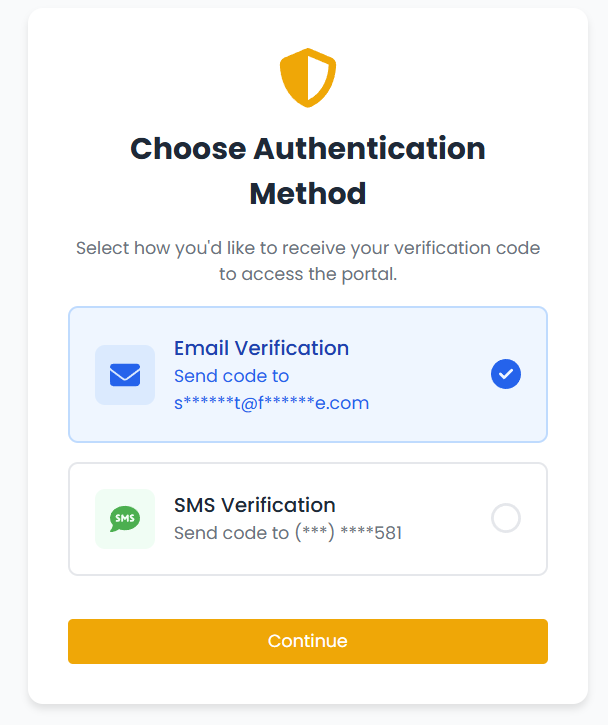
For Senders (Lenders):
- OTP applies automatically to all Invites once enabled
- No per-Invite configuration required
- Monitor authentication attempts through standard Invite activity logs
- Borrowers who don't receive PINs can request a new one from the authentication screen
Session Management
The Session Timeout determines how long borrowers can remain logged in without activity:
- Minimum: 1 hour
- Default: 6 hours
- Maximum: 24 hours
Important Notes:
- Sessions automatically refresh when borrowers interact with the portal (uploading files, opening request groups, sending messages)
- After the timeout period of inactivity, borrowers must authenticate again with a new PIN
- Each new PIN expires after 5 minutes if not used
Failed Authentication Attempts
For security, FileInvite limits failed authentication attempts:
- After 5 failed attempts: Borrower must wait 5 minutes before requesting a new PIN
- Lockout timer: Countdown displays remaining wait time
- Reset period: After successful authentication, attempt counter resets
Each new PIN request resets the 5-minute expiration timer.
Best Practices
💡 Security Recommendations:
- Use shorter session timeouts (1-3 hours) for highly sensitive documents
- Use longer session timeouts (12-24 hours) for complex applications requiring multiple visits
- Inform borrowers about OTP authentication in your initial communication
- Consider borrower workflows when selecting timeout duration—frequent uploads may benefit from longer sessions
💡 Implementation Tips:
- Test OTP authentication with your team before rolling out to borrowers
- Prepare customer service scripts for borrowers who have questions about PINs
- Monitor the first few days after enabling OTP to address any borrower concerns
- Document your session timeout policy for internal reference
Important Notes
- Once enabled, OTP authentication applies to all Invites immediately, including Invites that were created before OTP was enabled. There is no per-Invite override option.
- PINs are sent to the borrower's email address associated with the Invite. Ensure borrower email addresses are correct before sending Invites.
- If a borrower doesn't receive their PIN, they can request a new one from the authentication screen. The previous PIN will be invalidated when a new one is generated.
Disabling OTP Authentication
If you need to disable OTP authentication:
- Navigate to Settings > Portal Authentication
- Toggle the Enable portal authentication switch to the off position (gray)
- Click Save Settings
- Borrowers will no longer be required to enter a PIN when accessing the portal
Disabling OTP removes the authentication requirement for all future portal access, but does not affect borrowers already authenticated during active sessions.
Troubleshooting
Borrower didn't receive PIN:
- Check spam/junk folders for email delivery
- Verify mobile number is correct for SMS delivery
- Request a new PIN (previous PIN expires after 5 minutes)
PIN expired:
- Request a new PIN using the link on the authentication screen
- Each PIN is valid for 5 minutes from delivery
Account locked after failed attempts:
- Wait 5 minutes for automatic unlock
- Contact your FileInvite administrator if issues persist
🎉 OTP is active — only verified borrowers can now access your portal! 🎉