
If your Fileinvite Login URL ends in fileinvite.com, please use this knowledge base instead.
What Is Messaging?
Messaging allows you to send messages to all or specific contacts on an Invite. Using private messages ensures sensitive information reaches only the intended recipients while maintaining transparent communication with your team.
Key Features:
- Select individual recipients or send to all contacts
- Control message visibility per message
- All Contact messages are automatically private
- Your lending team sees all messages regardless of privacy level
- No additional setup required, available on all Invites
How Messaging Works
For Users (Senders):
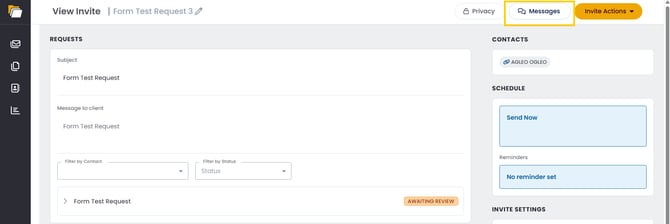
- Click the Messages button in the top-right corner of the Invite, next to Privacy and Invite Actions
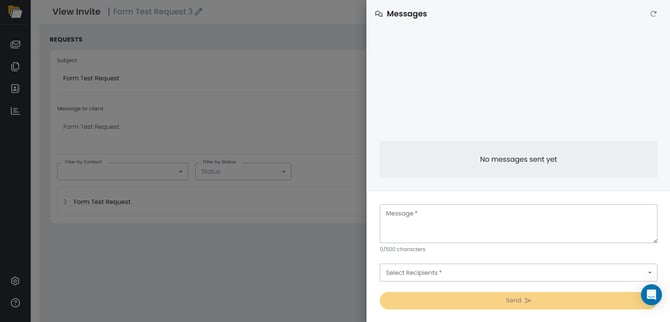
- A Messages panel slides out from the right side of the screen
- Existing messages display at the top of the panel, or No messages sent yet if none have been sent
- The message composition area displays at the bottom of the panel
For Contacts (Receivers):
- All messages sent by contacts are private by default
- Only your lending team sees contacts' messages—contacts cannot message each other
- Contacts see only messages sent to them (private) or to everyone (public)
- No action required from Contacts; privacy is automatic
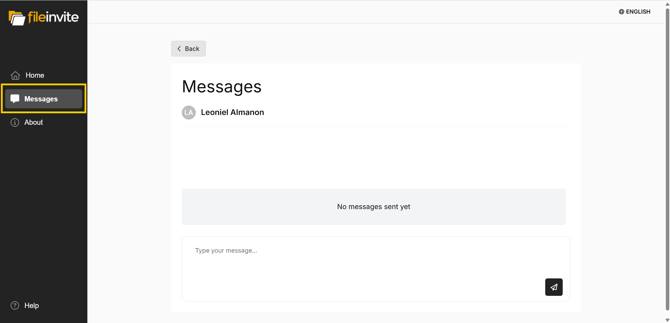
- Contacts access messaging from the Messages item in the Client Portal's left-hand navigation, alongside Home and About
- Messages appear as a conversation thread with the assigned team member, with a message field at the bottom of the page
Sending Messages
Before sending a message, open the Invite you want to communicate about.
- Access the Messages Panel
- Click the Messages button in the top-right corner of the Invite, next to Privacy and Invite Actions
- A Messages panel slides out from the right side of the screen
- Existing messages display at the top of the panel, or No messages sent yet if none have been sent
- Compose Your Message
- Click in the Message field
- Type your message (maximum 500 characters)
- A character counter below the field tracks your progress toward the limit
- Select Recipients
- Click the Select Recipients dropdown
- Choose from:
- All Contacts (sends a public message visible to all Contacts on the Invite)
- Individual contact names (select one or more specific Contacts for a private message)
- You can select multiple individual recipients for the same private message
- Send Your Message
- Click the Send button
- Your message is delivered immediately
- Private messages display only to selected recipients and your team
Note: Both the Message field and Select Recipients field are required—the Send button stays inactive until both are completed.
Understanding Message Visibility
Public Messages (All Contacts):
- Visible to every Contact on the Invite
- Visible to your entire lending team
- Best for general updates, deadline reminders, or information relevant to all parties
Private Messages (Selected Contacts):
- Visible only to the selected Contact(s)
- Visible to your entire lending team
- Best for sensitive information, individual questions, or Contact-specific updates
- Other Contacts on the Invite cannot see these messages
Contact Messages:
- Always private by default (Contacts have no recipient selection option)
- Visible only to your lending team
- Not visible to other Contacts on the Invite
- Ensures confidentiality without requiring Contacts to understand privacy settings
Best Practices for Private Messaging
💡 When to Use Private Messages:
- Discussing sensitive financial information specific to one Contact
- Addressing questions from individual Contacts
- Requesting additional documents from one party only
- Providing personalized guidance or instructions
- Resolving issues specific to one Contact's submissions
💡 When to Use Public Messages:
- Announcing deadline extensions that affect everyone
- Sharing general instructions for document submission
- Providing status updates on the overall Invite
- Requesting documents from all Contacts
- Communicating lender office closures or availability
💡 Communication Tips:
- Double-check your recipient selection before clicking Send
- Use clear subject lines in your message to help Contacts identify the topic
- Consider your team's visibility—all team members see all messages (public and private)
- Private messages reduce confusion for co-Contacts who don't need specific information
Important Notes
- Once a message is sent, the recipient selection cannot be changed. If you need to send the same message to different recipients, compose a new message with the appropriate selection.
- Your entire lending team can see all messages (both public and private). Private messaging controls visibility for Contacts only, not for internal team members.
- Message history displays in chronological order. Private and public messages appear in the same thread, but privacy indicators show only when the level changes between messages.
For a full overview of what borrowers see in the Client Portal, including the messages panel, see Client Portal.
🎉 Stay connected with your borrowers — every message keeps your deal moving forward! 🎉