
If your Fileinvite Login URL ends in fileinvite.com, please use this knowledge base instead.
This feature is available to our Connect and Connect+ plan tiers. Please contact your account manager for further details.
Privacy Levels
FileInvite offers three privacy levels for each Invite:
| Privacy Level | Who Can Access |
|---|---|
| Your Company Name | All users in your Company account |
| Team | Only members of the assigned team |
| Restricted | Only users explicitly added via the Invite sidebar (Point of Contact, Assignee, Watchers) |
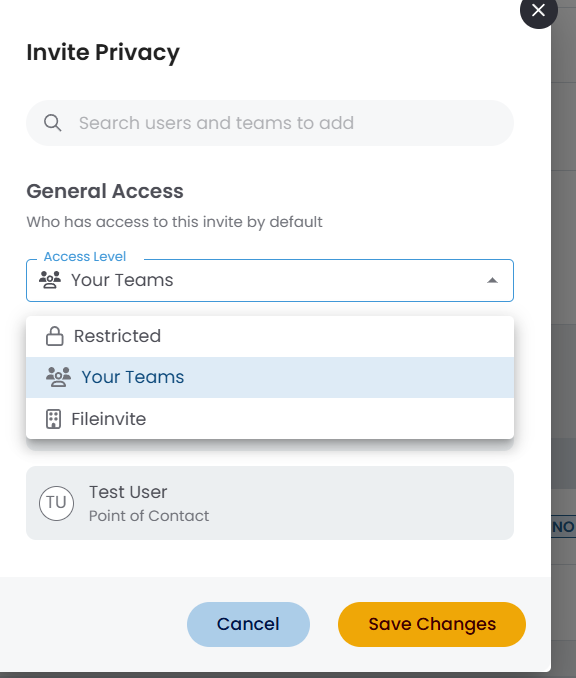
Setting Privacy on an Invite
- Open the Invite you want to modify
- Click the Privacy button near the top of the Invite view
- In the Invite Privacy modal, open the Access Level dropdown under General Access
- Your Company — visible to all users in your account
- Your Teams — visible only to members of the assigned team
- Restricted — visible only to users explicitly assigned via the sidebar
The current access indicator now updates in real time as you change the access level selection. You can preview who has access before clicking Save Changes, making it easier to verify your settings are correct.
5. Click Save Changes
Note: Users assigned via the sidebar fields (Point of Contact, Assignee, Watchers) are automatically listed under Current Access and retain access in line with the selected privacy level.
What Happens with Restricted Invites
- Invites a user doesn't have access to are hidden from their Manage Invites view
- Users who attempt to access a restricted Invite via direct link see a "not shared with you" page displaying the creator's contact information
- All privacy and sharing changes are tracked in the Invite Log for auditability
Auditing Privacy Changes
All changes to Invite privacy are recorded in the Invite Log, including who made the change, when it was made, and the previous and new privacy levels.
💡 Best Practice: Use Restricted privacy for Invites containing highly sensitive borrower information—such as financial statements or tax documents—that should only be visible to the directly assigned loan officer.
🎉 Your Contact List is ready — send to everyone in one action! 🎉