
Learn how to generate a history report for any Invite. The Invite History Report lets you export a complete record of everything that has happened on an Invite — uploads, document status changes, assignee updates, and more — as a CSV file delivered to your email.
If your Fileinvite Login URL ends in fileinvite.com, please use this knowledge base instead.
Getting Started
Open the Invite you want to review from the Manage Invites page.
Generating a Report
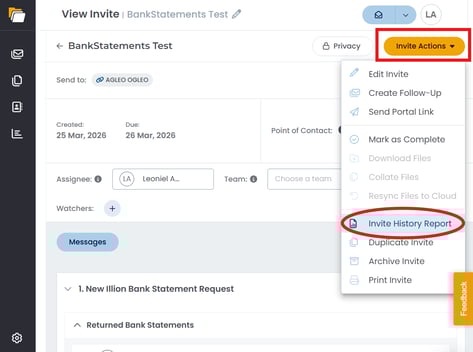
- On the View Invite screen, click the Invite Actions dropdown in the top-right corner of the Invite header
- Select Invite History Report
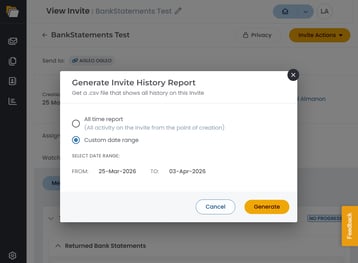 In the Generate Invite History Report dialog, choose your report scope:
-
- All time report — includes all activity on the Invite from the point of creation
- Custom date range — lets you specify a FROM and TO date to narrow the report to a specific period
- Click Generate
- The report is exported as a CSV file and delivered to your email
The CSV is sent to the email address associated with your FileInvite account. Delivery time may vary depending on the size of the Invite's activity history.
💡 Best Practices:
- Use Custom date range to generate targeted reports for a specific period, such as activity from the past week or a particular milestone date
- For compliance or audit purposes, use All time report to export and save a complete record of Invite activity
🎉 You can now export a full activity history for any Invite directly from the View Invite screen! 🎉