
If your Fileinvite Login URL ends in fileinvite.com, please use this knowledge base instead.
Key Features
- Request-level comments – Ask Contacts questions directly on a specific request, with email alerts when they reply
- Filters in View Invite – Filter by Contact or status (e.g. "Awaiting Review") to find what you need faster
- Request Bulk Actions – Select multiple requests to update Contact assignments or delete requests, instead of one at a time
- Drag and drop – Reorder requests and Request Groups just by dragging them into place
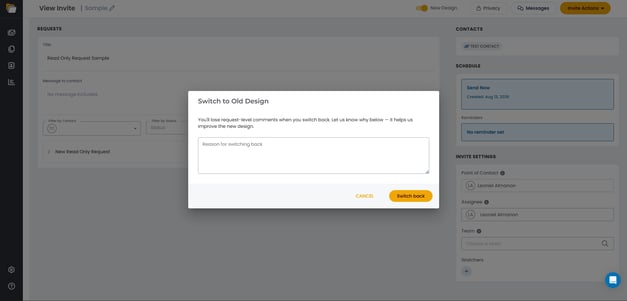
Switching Between New and Classic Design
The New Design toggle at the top of the View Invite page lets you switch between the redesigned layout and the classic layout at any time.
- Open an Invite from Manage Invites
- Click the New Design toggle in the top-right corner
- Enabled (orange): Displays the new View Invite layout
- Disabled (gray): Displays the classic layout
Note: Switching back to the classic layout prompts you to confirm, since request-level comments aren't available in the classic layout.
Request-Level Comments
Use comments to ask a Contact a question about a specific request without leaving the Invite.
- Open a request within an Invite
- Click the Comment icon on the request
- Type your question and click Send
Note: When a Contact replies to a comment, both the Assignee and any Watchers receive an email alert.
Filters in View Invite
Filters help you narrow down a long list of requests to only what's relevant. They're available in the New Design layout of the View Invite page.
- Open the View Invite page (with New Design enabled)
- Use the Filter by Contact dropdown to view requests for a specific Contact
- Use the Filter by Status dropdown to view requests with a specific status (e.g. Awaiting Review)
- Combine both filters to narrow the list further
The Requests panel updates automatically as you apply each filter.
Request Bulk Actions
Bulk actions let you update or remove several requests at once instead of repeating the same action individually.
- In the Requests section, select the checkbox next to each request you want to update
- Choose an action:
- Reassign Contact – Change the assigned Contact for all selected requests
- Delete – Remove all selected requests from the Invite
- Confirm the action when prompted
💡 Best Practices:
- Use filters first to narrow the list, then apply bulk actions to just the requests you need
- Double-check your selection before choosing Delete, as removed requests cannot be recovered
Drag and Drop
Reorder requests and Request Groups to match your preferred workflow.
- Open the Invite in Create Invite or Edit Invite
- Click and hold the drag handle (☰) next to a request or Request Group header
- Drag it to the desired position
- Release to drop it in place
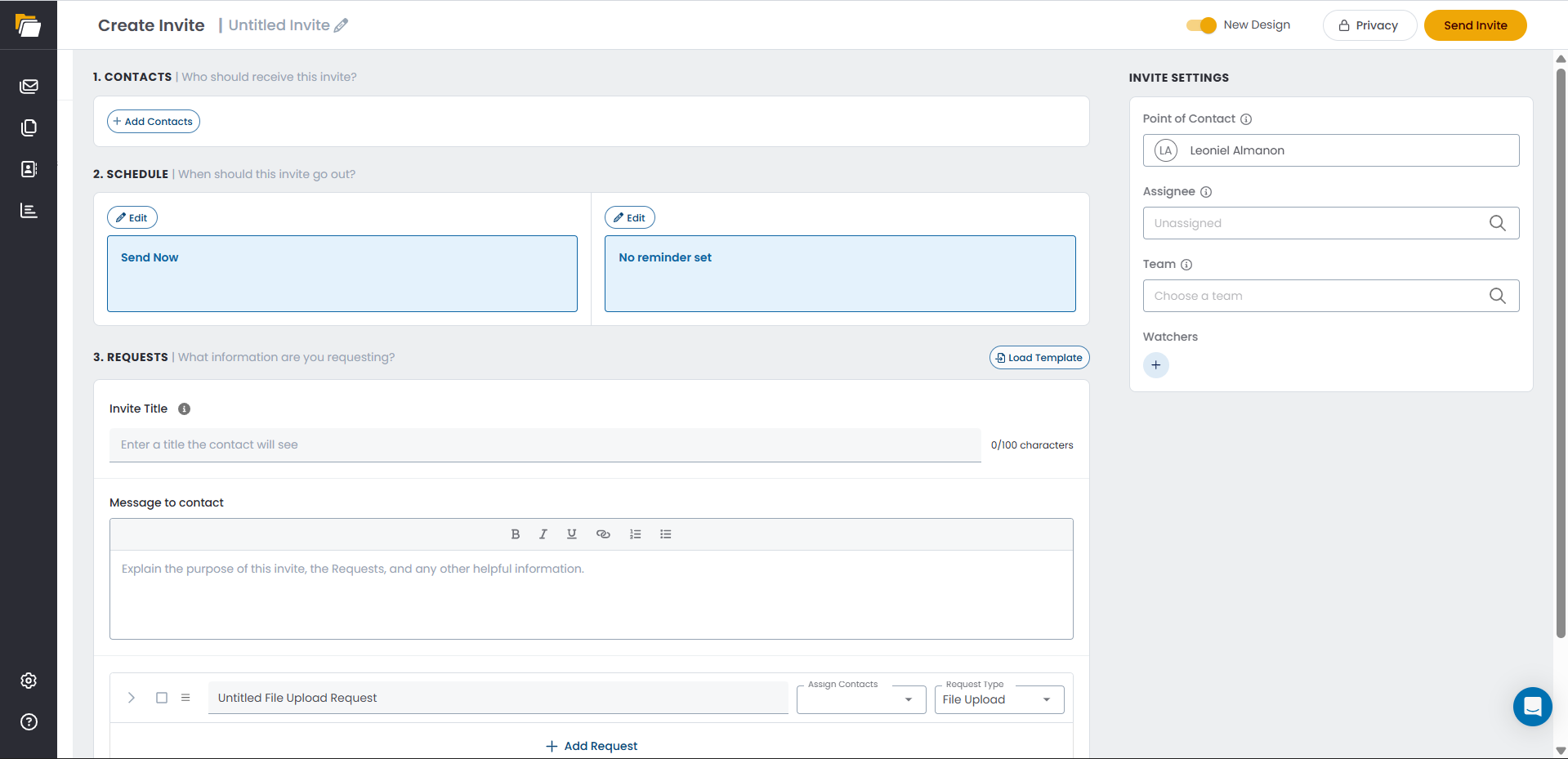
The new order is saved automatically and reflected on the Contact's Client Portal.
🎉 Explore the redesigned Invite pages today and see how comments, filters, bulk actions, and drag-and-drop reordering can speed up your workflow! 🎉